> ## Documentation Index
> Fetch the complete documentation index at: https://docs.thena.ai/llms.txt
> Use this file to discover all available pages before exploring further.
# Forms
> Define what information is collected when a ticket is created.
Forms in Thena allow teams to define what information is collected when a ticket is created. From capturing customer inputs to internal triage details, Forms help ensure every ticket starts with the right context.
## What are forms
Forms are customizable layouts used to collect structured data from users—whether customers, agents, or teammates. Each form consists of one or more fields, and you can define who can view, edit, or be required to fill them.
Forms are used:
- During ticket creation (web, Slack, chat, or API).
- To control what appears in the ticket view.
- To guide agents and customers through dynamic data capture.
- To power downstream automation, workflows, and analytics.
## Fields in forms
Before creating a form, you need fields.
Standard fields (built-in by Thena)
- Requester (mandatory)
- Title (mandatory)
- Status
- Assignee
- Account
These are common across all tickets.
Custom fields (user-defined)
You can define custom fields to match your specific workflow:
- Text inputs
- Dropdowns
- Date pickers
- Multi-selects
- Toggles
- Cascading fields based on logic
For detailed information on standard fields and how to create custom fields, see the Ticket fields guide.
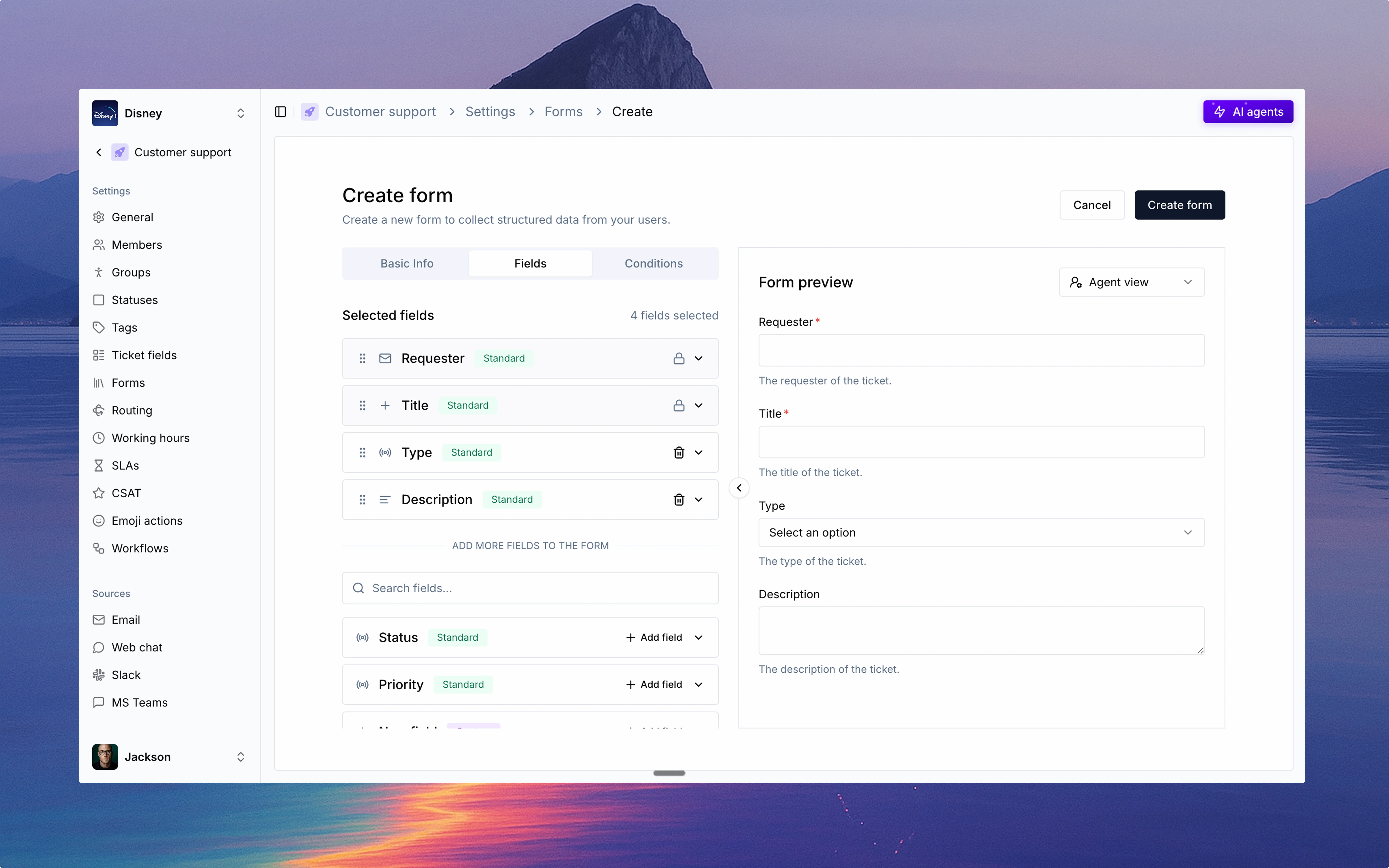
## How to create a form
Navigate to Settings → Forms.
Click "Create form".
- Name your form.
- Give a description.
- Requester and Title are mandatory.
- Add any standard or custom fields needed for your workflow.
- Use drag-and-drop to reorder.
For each field, configure:
- Visible in customer portal
- Editable by requester
- Required on creation
- Required on close
- Add logic to dynamically show or hide fields.
- Example: Show "Escalation reason" if Priority = High.
- Conditions override default field settings.
- Instantly toggle between Agent view and Requester view.
- Once saved, the form becomes selectable during ticket creation.
 ## Where forms are used
Agents can choose team and form at ticket creation.
Form is shown as per visibility rules.
Slack modal opens if enabled.
Form questions embedded in chat.
Submit structured form data programmatically.
## What happens after a form is used
## Where forms are used
Agents can choose team and form at ticket creation.
Form is shown as per visibility rules.
Slack modal opens if enabled.
Form questions embedded in chat.
Submit structured form data programmatically.
## What happens after a form is used
Forms unify the ticket creation experience—no matter where it starts.
Once a ticket is created with a form:
- The form appears on the right-hand panel of the ticket.
- Agents can view or switch forms.
- Fields reflect form-level visibility, permissions, and logic.
- Customers can update editable fields via the customer portal.
- All updates sync in real time and are fully auditable.
## Best practices
- Use forms to enforce consistent ticket intake across teams.
- Create templates for common ticket types.
- Establish naming conventions for fields and forms.
- Use field descriptions to guide users.
- Keep forms as short as possible while capturing necessary information.
- Group related fields together for better user experience.
- Use conditional fields to show relevant fields based on input.
- Create team-specific forms (e.g., Customer Support vs IT).
- Regularly review and prune unused fields/forms.
- Align forms with the metrics you want to report on.
- Include fields that will help with categorization and analysis.
- Consider how form data will be used in dashboards and reports.
## Example use cases
- Product version
- Type of issue (bug, feature request, feedback)
- Customer segment
- Steps to reproduce
- Urgency level
- Preferred contact time
- Device or asset ID
- Affected system or app
- Error message or code
- Is this blocking work? (Yes/No)
- Location (onsite or remote)
- Desired resolution time
Forms in Thena are your system of record for clean, contextual, and actionable support data—across every channel and every team. Whether you're scaling customer operations or managing internal IT requests, Forms give you structure, clarity, and measurable insight.