> ## Documentation Index
> Fetch the complete documentation index at: https://docs.thena.ai/llms.txt
> Use this file to discover all available pages before exploring further.
# Linear
> Connect your Thena tickets with Linear issues for seamless project management and enhanced workflow coordination.
 ## Overview
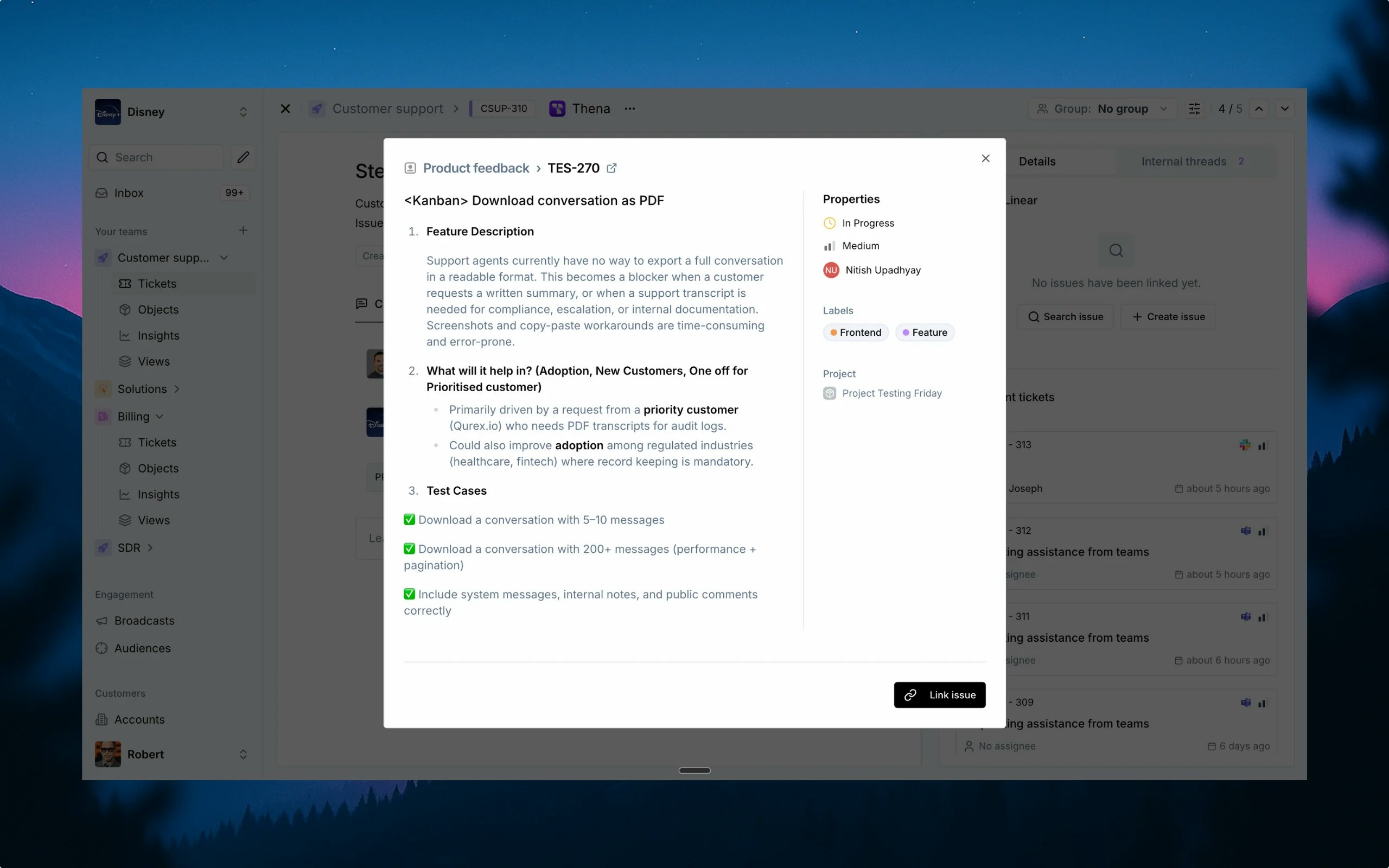
The Linear integration connects your Thena platform with Linear, enabling seamless collaboration between customer support and development teams. This integration provides the following capabilities:
* **Ticket linking**: Connect Thena tickets with Linear issues for complete traceability
* **Issue creation**: Create new Linear issues directly from Thena tickets
* **Issue search**: Find and link existing Linear issues without leaving Thena
* **Synchronized updates**: Keep your project management and customer support systems in sync
## Key features
* Connect Thena tickets to Linear issues
* View linked issues in ticket details
* Unlink issues when needed
* Find existing Linear issues
* Search by title or ID
* Link issues directly from search results
* Create new Linear issues from Thena
* Select team, template, and issue details
* Set status, priority, assignee, and labels
* View basic issue details in card view (ID, status, priority, assignee)
* Access comprehensive details when clicking on issues
* Updates reflected in near real-time
## Setup
The Linear integration uses the API key of the user who authenticated it. New Linear issues will be created as this user. If re-authenticated by a different user, subsequent issues will reflect the new user. We recommend using a dedicated Linear account for the integration.
1. Navigate to the [Apps studio](https://dashboard.thena.ai/organization/settings/apps-studio) in your Thena dashboard
2. Find the Linear integration in the available apps
3. Click the "Install" button to begin the installation process
1. Review the permissions and scopes required by the integration
2. Select the teams in Thena where you want to install Linear
1. After configuration, click "Complete Linear authorization"
2. You'll be redirected to Linear to authorize the connection
3. Grant the necessary permissions for the integration
4. You'll be redirected back to Thena once authorization is complete
1. Open a ticket in Thena
2. Navigate to the Linear section in the ticket details
3. Search for a Linear issue to confirm the connection is working
4. Verify that issue data is correctly displayed
## How to link a Linear issue
1. Open a ticket in Thena
2. Navigate to the Linear section in the ticket details panel
3. Click the "Search issue" button
4. Enter the Linear issue key or search by keywords
5. Select the appropriate issue from the search results
6. Click "Link" to connect the Thena ticket with the Linear issue
1. Open a ticket in Thena
2. Add a comment in any internal thread
3. Include a Linear issue link or key (e.g., PRJ-123 or [https://linear.app/your-org/issue/PRJ-123](https://linear.app/your-org/issue/PRJ-123))
4. The system will automatically detect and link the Linear issue to your ticket
When a Linear issue is linked through an internal thread:
* You'll see the issue summary, status, priority, and assignee
* Click on the issue to open it directly in Linear
## How to search for a Linear issue
1. Open a ticket in Thena
2. Navigate to the Linear section in the ticket details
3. Click the "Search issue" button
1. Type your search query in the search field
2. You can search by issue key (e.g., PRJ-123) for exact matches
3. Or search by keywords to find relevant issues
4. You can also filter by project using the dropdown menu
1. Review the search results showing issue summaries and statuses
2. Click "Link" to connect the selected issue with your Thena ticket
## How to create a Linear issue
1. Open a ticket in Thena
2. Navigate to the Linear section in the ticket details
3. Click the "Create issue" button
1. At the top of the issue creation window, choose the Linear team where you want to create the issue
* This indicates the Linear project to which the new issue will be added
* Use the dropdown to change the project to a different one within your Linear workspace
2. If your Linear workspace has templates set up, you can select one to pre-fill specific fields
3. Click "Next" to proceed
1. **Issue title**: Enter a title that summarizes the problem or task
2. **Description**: Provide detailed information such as steps to reproduce or expected outcomes
3. **Status**: Select from statuses fetched from the relevant Linear team's configuration
4. **Priority**: Assign a priority level (Urgent, High, Medium, Low, No priority)
5. **Assignee**: Designate a team member responsible for this issue (list shows assignees from Linear)
6. **Labels**: Add relevant labels to categorize and filter issues within your project
7. **Project**: Confirm the correct project assignment (pre-selected based on team choice)
8. **Cycle**: Confirm the correct cycle assignment (pre-selected based on team choice)
9. Click "Create" to finalize the issue
1. The newly created issue will be automatically linked to your Thena ticket
2. You'll see the issue details in the Linear section of the ticket panel once created
3. The issue details will show ID, status, priority, and assignee
## Viewing Linear issue details
1. Open a ticket with a linked Linear issue in Thena
2. Navigate to the Linear section in the ticket details panel
The Linear issue details include:
1. **Status**: Current workflow status of the issue
2. **Priority**: Issue priority level (Urgent, High, Medium, Low, No priority)
3. **Assignee**: Team member responsible for the issue
1. Click on the issue card to open it in Thena
2. Or, click on the 'Open in Linear' button to open it directly in Linear
3. Make any necessary updates directly in Linear
4. Changes will be reflected in Thena in near real-time
## Permission scopes
The Linear app requires specific permissions to function properly. When authorizing the app, you'll be asked to grant the following permission scopes:
Access to read ticket information from Thena:
* Read ticket data for synchronization with Linear
* Access ticket details for linking with Linear issues
* View ticket metadata for proper integration
Access to Linear teams:
* Get teams and team information
* Set default teams for issue creation
* Access team-specific configurations
Full issue management capabilities:
* Create new issues with detailed metadata
* Search existing issues
* Link and unlink issues with Thena tickets
* View issue details including status, priority, and assignee
File handling capabilities:
* Upload files to Linear
* Attach files to issues
## FAQs
Yes, you can link multiple Linear issues to a single Thena ticket. Each linked issue will appear in the Linear section of the ticket details panel, allowing you to track multiple related issues.
When a linked Linear issue is updated, the changes will be reflected in the Thena ticket details. This includes updates to status, priority, assignee, labels, and other issue details. The synchronization happens near real-time, ensuring you always have the latest information.
In the card view, the integration displays basic Linear issue information:
* ID and title
* Status
* Priority
* Assignee
When you click on the issue card, you'll see comprehensive details including:
* Title and description
* Status with all available options from the Linear team's configuration
* Priority levels
* Assignee options
* Labels
* Project assignment
* Cycle assignment
You need:
* View permissions for the teams you want to access
* Create issue permissions if you want to create new issues
* Edit permissions if you want to update existing issues
The integration will respect the permissions of the authenticated Linear user.
Yes, you can unlink a Linear issue from a Thena ticket by clicking the unlink button next to the linked issue in the ticket details panel. This will remove the reference in Thena.
There is no specific limit imposed by the Thena integration on the number of Linear issues you can link or create. However, be mindful of any API rate limits that may be enforced by Linear.
## Overview
The Linear integration connects your Thena platform with Linear, enabling seamless collaboration between customer support and development teams. This integration provides the following capabilities:
* **Ticket linking**: Connect Thena tickets with Linear issues for complete traceability
* **Issue creation**: Create new Linear issues directly from Thena tickets
* **Issue search**: Find and link existing Linear issues without leaving Thena
* **Synchronized updates**: Keep your project management and customer support systems in sync
## Key features
* Connect Thena tickets to Linear issues
* View linked issues in ticket details
* Unlink issues when needed
* Find existing Linear issues
* Search by title or ID
* Link issues directly from search results
* Create new Linear issues from Thena
* Select team, template, and issue details
* Set status, priority, assignee, and labels
* View basic issue details in card view (ID, status, priority, assignee)
* Access comprehensive details when clicking on issues
* Updates reflected in near real-time
## Setup
The Linear integration uses the API key of the user who authenticated it. New Linear issues will be created as this user. If re-authenticated by a different user, subsequent issues will reflect the new user. We recommend using a dedicated Linear account for the integration.
1. Navigate to the [Apps studio](https://dashboard.thena.ai/organization/settings/apps-studio) in your Thena dashboard
2. Find the Linear integration in the available apps
3. Click the "Install" button to begin the installation process
1. Review the permissions and scopes required by the integration
2. Select the teams in Thena where you want to install Linear
1. After configuration, click "Complete Linear authorization"
2. You'll be redirected to Linear to authorize the connection
3. Grant the necessary permissions for the integration
4. You'll be redirected back to Thena once authorization is complete
1. Open a ticket in Thena
2. Navigate to the Linear section in the ticket details
3. Search for a Linear issue to confirm the connection is working
4. Verify that issue data is correctly displayed
## How to link a Linear issue
1. Open a ticket in Thena
2. Navigate to the Linear section in the ticket details panel
3. Click the "Search issue" button
4. Enter the Linear issue key or search by keywords
5. Select the appropriate issue from the search results
6. Click "Link" to connect the Thena ticket with the Linear issue
1. Open a ticket in Thena
2. Add a comment in any internal thread
3. Include a Linear issue link or key (e.g., PRJ-123 or [https://linear.app/your-org/issue/PRJ-123](https://linear.app/your-org/issue/PRJ-123))
4. The system will automatically detect and link the Linear issue to your ticket
When a Linear issue is linked through an internal thread:
* You'll see the issue summary, status, priority, and assignee
* Click on the issue to open it directly in Linear
## How to search for a Linear issue
1. Open a ticket in Thena
2. Navigate to the Linear section in the ticket details
3. Click the "Search issue" button
1. Type your search query in the search field
2. You can search by issue key (e.g., PRJ-123) for exact matches
3. Or search by keywords to find relevant issues
4. You can also filter by project using the dropdown menu
1. Review the search results showing issue summaries and statuses
2. Click "Link" to connect the selected issue with your Thena ticket
## How to create a Linear issue
1. Open a ticket in Thena
2. Navigate to the Linear section in the ticket details
3. Click the "Create issue" button
1. At the top of the issue creation window, choose the Linear team where you want to create the issue
* This indicates the Linear project to which the new issue will be added
* Use the dropdown to change the project to a different one within your Linear workspace
2. If your Linear workspace has templates set up, you can select one to pre-fill specific fields
3. Click "Next" to proceed
1. **Issue title**: Enter a title that summarizes the problem or task
2. **Description**: Provide detailed information such as steps to reproduce or expected outcomes
3. **Status**: Select from statuses fetched from the relevant Linear team's configuration
4. **Priority**: Assign a priority level (Urgent, High, Medium, Low, No priority)
5. **Assignee**: Designate a team member responsible for this issue (list shows assignees from Linear)
6. **Labels**: Add relevant labels to categorize and filter issues within your project
7. **Project**: Confirm the correct project assignment (pre-selected based on team choice)
8. **Cycle**: Confirm the correct cycle assignment (pre-selected based on team choice)
9. Click "Create" to finalize the issue
1. The newly created issue will be automatically linked to your Thena ticket
2. You'll see the issue details in the Linear section of the ticket panel once created
3. The issue details will show ID, status, priority, and assignee
## Viewing Linear issue details
1. Open a ticket with a linked Linear issue in Thena
2. Navigate to the Linear section in the ticket details panel
The Linear issue details include:
1. **Status**: Current workflow status of the issue
2. **Priority**: Issue priority level (Urgent, High, Medium, Low, No priority)
3. **Assignee**: Team member responsible for the issue
1. Click on the issue card to open it in Thena
2. Or, click on the 'Open in Linear' button to open it directly in Linear
3. Make any necessary updates directly in Linear
4. Changes will be reflected in Thena in near real-time
## Permission scopes
The Linear app requires specific permissions to function properly. When authorizing the app, you'll be asked to grant the following permission scopes:
Access to read ticket information from Thena:
* Read ticket data for synchronization with Linear
* Access ticket details for linking with Linear issues
* View ticket metadata for proper integration
Access to Linear teams:
* Get teams and team information
* Set default teams for issue creation
* Access team-specific configurations
Full issue management capabilities:
* Create new issues with detailed metadata
* Search existing issues
* Link and unlink issues with Thena tickets
* View issue details including status, priority, and assignee
File handling capabilities:
* Upload files to Linear
* Attach files to issues
## FAQs
Yes, you can link multiple Linear issues to a single Thena ticket. Each linked issue will appear in the Linear section of the ticket details panel, allowing you to track multiple related issues.
When a linked Linear issue is updated, the changes will be reflected in the Thena ticket details. This includes updates to status, priority, assignee, labels, and other issue details. The synchronization happens near real-time, ensuring you always have the latest information.
In the card view, the integration displays basic Linear issue information:
* ID and title
* Status
* Priority
* Assignee
When you click on the issue card, you'll see comprehensive details including:
* Title and description
* Status with all available options from the Linear team's configuration
* Priority levels
* Assignee options
* Labels
* Project assignment
* Cycle assignment
You need:
* View permissions for the teams you want to access
* Create issue permissions if you want to create new issues
* Edit permissions if you want to update existing issues
The integration will respect the permissions of the authenticated Linear user.
Yes, you can unlink a Linear issue from a Thena ticket by clicking the unlink button next to the linked issue in the ticket details panel. This will remove the reference in Thena.
There is no specific limit imposed by the Thena integration on the number of Linear issues you can link or create. However, be mindful of any API rate limits that may be enforced by Linear.