> ## Documentation Index
> Fetch the complete documentation index at: https://docs.thena.ai/llms.txt
> Use this file to discover all available pages before exploring further.
# Workflows
> Automate your support processes with powerful workflow automation.
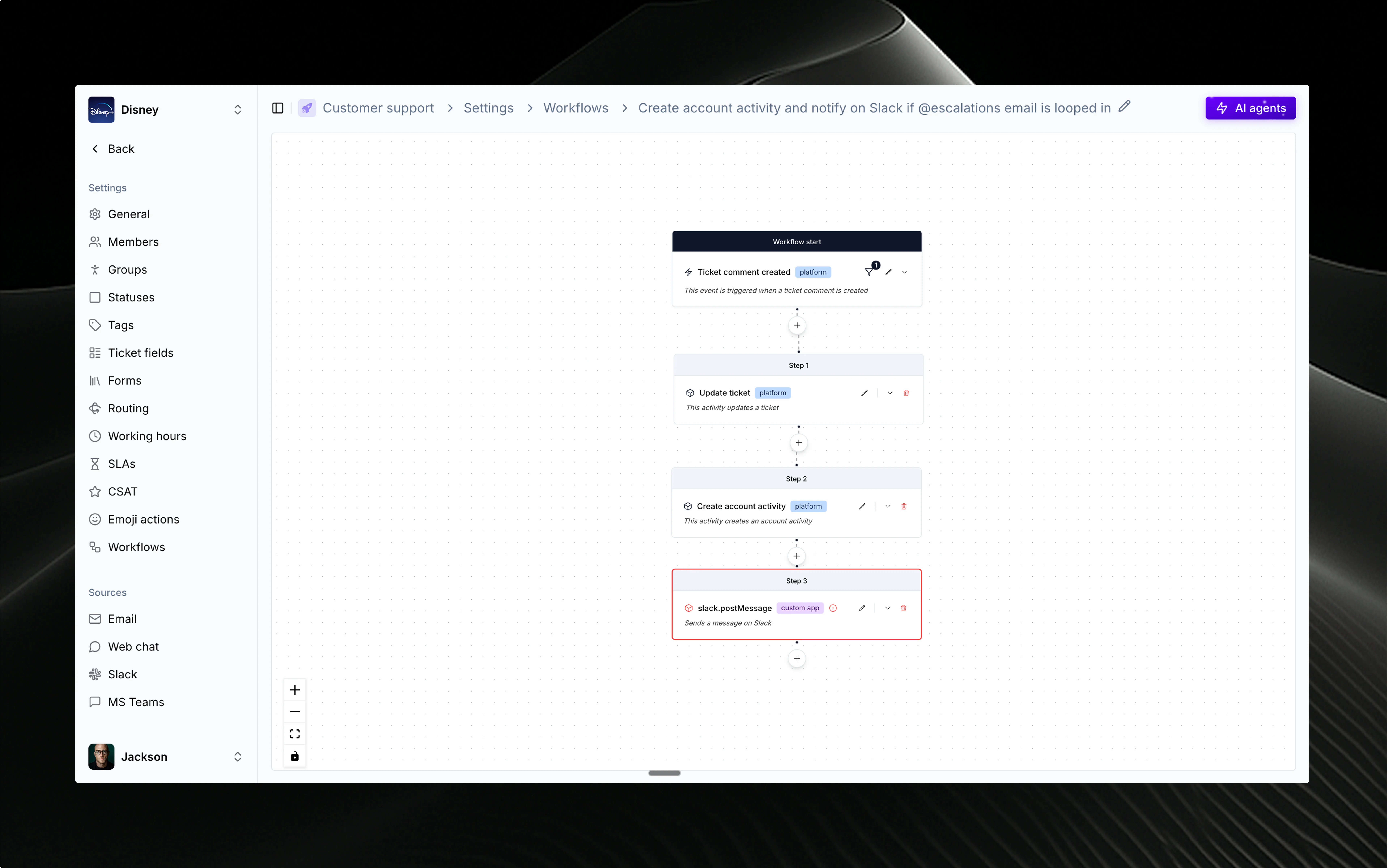 ## 🔄 What's a workflow?
Workflows in Thena are powerful automation tools that help you streamline repetitive tasks, ensure consistency, and improve your team's efficiency. A workflow consists of:
* **Trigger events** that start the automation
* **Conditions** that determine when it should run
* **Activities** that perform the actual work
* **Status controls** to activate or pause automation
You can create workflows to handle everything from ticket routing and escalation to notifications and data updates across your entire support process.
Start with simple workflows and gradually add complexity as your team becomes more comfortable with automation.
## ⚡ Trigger events
Trigger events are what kick off your workflows. Thena supports a wide range of events from both the platform and integrated applications.
### Common trigger events
• Ticket created
## 🔄 What's a workflow?
Workflows in Thena are powerful automation tools that help you streamline repetitive tasks, ensure consistency, and improve your team's efficiency. A workflow consists of:
* **Trigger events** that start the automation
* **Conditions** that determine when it should run
* **Activities** that perform the actual work
* **Status controls** to activate or pause automation
You can create workflows to handle everything from ticket routing and escalation to notifications and data updates across your entire support process.
Start with simple workflows and gradually add complexity as your team becomes more comfortable with automation.
## ⚡ Trigger events
Trigger events are what kick off your workflows. Thena supports a wide range of events from both the platform and integrated applications.
### Common trigger events
• Ticket created
• Ticket updated
• Ticket status changed
• Ticket comment added
• Ticket assigned/reassigned
• Slack message sent
• Email received
• Form submission
• External app events
• Scheduled/timer events
Whether it's a new high-priority ticket or a customer reply, events give you precise control over when automation should activate.
## 🎯 Workflow conditions
Conditions let you create smart filters that determine exactly when your workflow should run. You can build rules using any field or property available in the trigger event.
Filter based on priority, status, assignee, account, custom fields, or any ticket data.
Target workflows based on user type, permissions, team membership, or custom properties.
Use sentiment, keywords, or message content to trigger specialized workflows.
Consider business hours, timezone, or historical data when deciding to activate.
Use **match all** (AND) or **match any** (OR) logic to create precise targeting for your automation needs.
## 🛠️ Activities and actions
Activities are the actual work your workflow performs. Thena provides a rich library of built-in activities plus support for custom integrations.
### Built-in activities
• Create or update tickets
• Change status or priority
• Assign to agents or teams
• Add comments or notes
• Set due dates
• Send Slack notifications
• Email stakeholders
• Create announcements
• Update external systems
• Log activity
• Update account information
• Create or modify records
• Sync with external databases
• Generate reports
• Archive data
• Add delays or wait periods
• Branch based on conditions
• Loop through data sets
• Error handling and retries
• Workflow orchestration
### Visual workflow builder
Create workflows using Thena's intuitive drag-and-drop interface:
* **Visual canvas** for designing workflow logic
* **Activity library** with all available actions
* **Connection lines** showing the flow between activities
* **Real-time validation** to catch configuration issues
* **Testing tools** to verify your workflow before activation
## 📋 Managing workflows
### Workflow dashboard
Your workflow dashboard gives you complete visibility and control:
See which workflows are running and their current status
Enable or disable workflows with a single click
Monitor execution times and success rates
### Workflow actions
Modify workflow logic, update conditions, or add new activities
Review past runs, debug issues, and track performance metrics
Clone existing workflows as templates for new automation
Track changes and roll back to previous versions when needed
## 🔗 Integration and automation
Workflows integrate seamlessly with your existing tools and processes:
### Cross-platform automation
Automatically notify channels, create threads, or update status messages
Send personalized responses, escalation notices, or status updates
Connect to any external system via webhooks or API calls
Keep information current across all your business systems
### Advanced features
Built-in retry logic and compensation strategies for failed activities
Automatic throttling to respect API limits and system resources
Create complex logic flows with multiple paths and decision points
Use dynamic variables and liquid templates for personalized content
## 📊 Workflow examples
### High-priority ticket escalation
**Trigger**: Ticket created with priority = "High"\
**Conditions**: Business hours AND account tier = "Enterprise"\
**Activities**:
1. Assign to senior support team
2. Notify team lead via Slack
3. Set due date to 2 hours
4. Add escalation tag
### Customer response automation
**Trigger**: Ticket comment added\
**Conditions**: Comment author = customer AND ticket status = "Waiting on customer"\
**Activities**:
1. Change status to "In progress"
2. Assign to available agent
3. Remove "waiting" labels
4. Log response time
### Weekly report generation
**Trigger**: Schedule (every Monday 9 AM)\
**Conditions**: Team has active tickets\
**Activities**:
1. Generate ticket summary
2. Calculate team metrics
3. Send report to stakeholders
4. Update dashboard widgets
## 🧠 Best practices
Begin with basic workflows and add complexity gradually as your team learns
Use the testing tools to verify workflows before activating in production
Regularly check execution logs and success rates to optimize workflows
Give workflows clear names and descriptions so your team understands their purpose
## 🔔 Workflow status and monitoring
Once active, workflows provide real-time feedback and monitoring:
* ✅ **Successfully executed** (e.g., Completed in 1.2s)
* 🟨 **In progress** (e.g., Running activity 2 of 5)
* 🔴 **Failed execution** (e.g., Error: API timeout)
* ⏸️ **Paused workflow** (e.g., Manually disabled)
Your team always knows the status of automation—and can intervene when needed to ensure smooth operations.