> ## Documentation Index
> Fetch the complete documentation index at: https://docs.thena.ai/llms.txt
> Use this file to discover all available pages before exploring further.
# Tags
> Learn how to use tags to organize and categorize tickets in Thena.
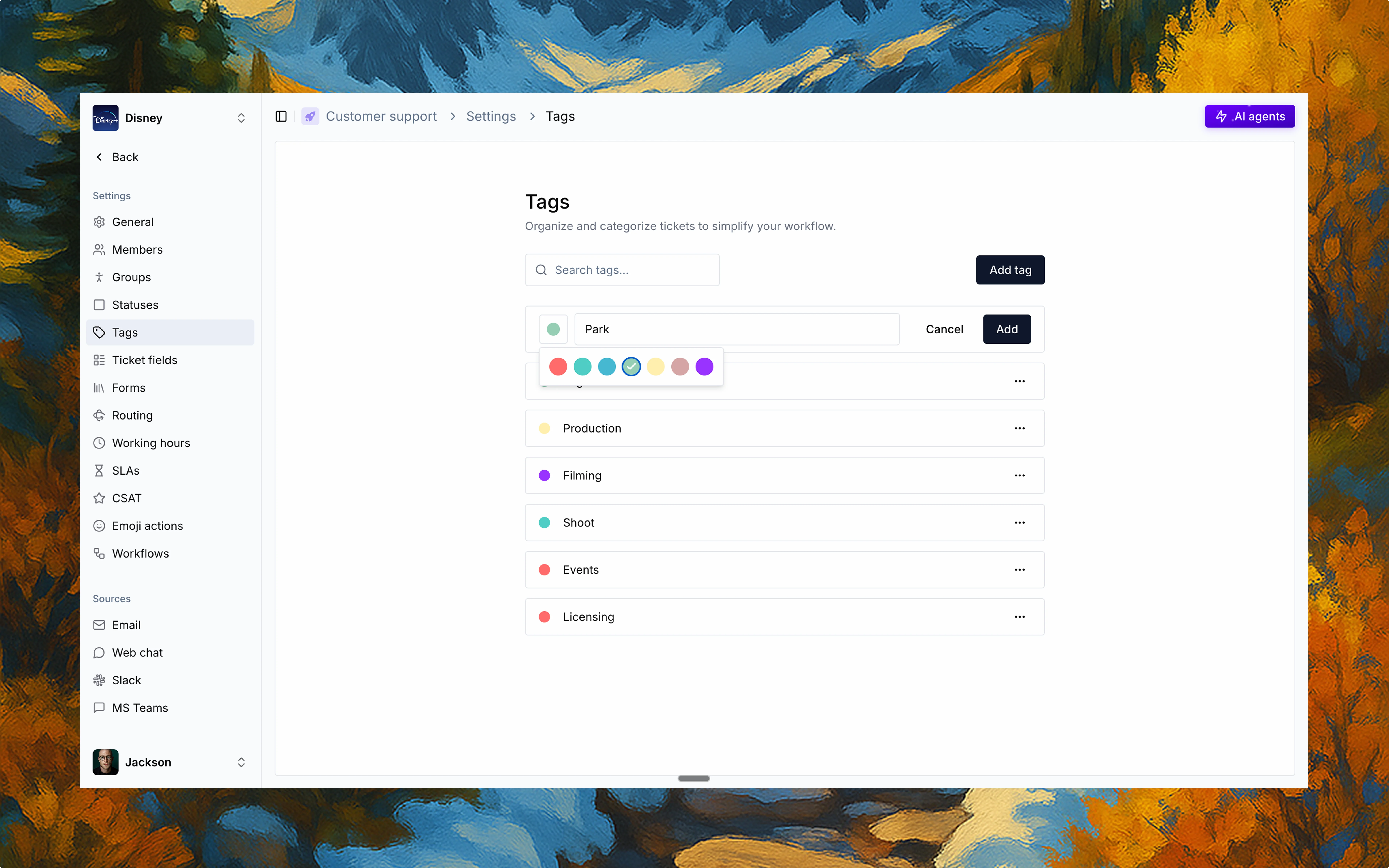 Tags in Thena help you organize and categorize tickets in a flexible, lightweight way—
without needing to rely on rigid fields or workflows. You can tag tickets by theme, issue
type, team context, customer segment, or any other custom label that fits your
operation.
## Create and manage tags
Admins can create new tags under Settings > Tags. Each tag can be:
* Named and color-coded
* Edited or deleted anytime
* Easily searchable from the tag manager
This helps keep your tagging system clean and consistent across teams.
## Where tags show up
Once created, tags can be applied to any ticket. Tags appear in two key places:
Tags show up prominently in boards and lists, making it easy to identify ticket categories at a glance.
Tags are editable within the right sidebar, allowing agents to quickly update categorization.
This makes them perfect for quickly filtering and scanning across large volumes of
tickets.
## Tag usage in workflows
Tags aren't just for visuals—they also work behind the scenes. You can use tags to:
Start workflows and automations based on specific tag combinations.
Create routing rules or SLA conditions based on ticket tags.
Group and analyze tickets in reports and analytics dashboards.
Enable mass updates across filtered views of similarly tagged tickets.
## Searching and filtering by tags
Use the search bar or board-level filters to view all tickets associated with a specific tag.
This makes it easy to isolate patterns, monitor special projects, or escalate critical
topics.
## Best practices
Use short, intuitive tag names that are easy to recognize and remember.
Apply consistent colors to visually group related tags for faster recognition.
Periodically review and remove unused tags to prevent tag sprawl.
Train your team on when and how to apply specific tags for consistency.
Tags in Thena help you organize and categorize tickets in a flexible, lightweight way—
without needing to rely on rigid fields or workflows. You can tag tickets by theme, issue
type, team context, customer segment, or any other custom label that fits your
operation.
## Create and manage tags
Admins can create new tags under Settings > Tags. Each tag can be:
* Named and color-coded
* Edited or deleted anytime
* Easily searchable from the tag manager
This helps keep your tagging system clean and consistent across teams.
## Where tags show up
Once created, tags can be applied to any ticket. Tags appear in two key places:
Tags show up prominently in boards and lists, making it easy to identify ticket categories at a glance.
Tags are editable within the right sidebar, allowing agents to quickly update categorization.
This makes them perfect for quickly filtering and scanning across large volumes of
tickets.
## Tag usage in workflows
Tags aren't just for visuals—they also work behind the scenes. You can use tags to:
Start workflows and automations based on specific tag combinations.
Create routing rules or SLA conditions based on ticket tags.
Group and analyze tickets in reports and analytics dashboards.
Enable mass updates across filtered views of similarly tagged tickets.
## Searching and filtering by tags
Use the search bar or board-level filters to view all tickets associated with a specific tag.
This makes it easy to isolate patterns, monitor special projects, or escalate critical
topics.
## Best practices
Use short, intuitive tag names that are easy to recognize and remember.
Apply consistent colors to visually group related tags for faster recognition.
Periodically review and remove unused tags to prevent tag sprawl.
Train your team on when and how to apply specific tags for consistency.