> ## Documentation Index
> Fetch the complete documentation index at: https://docs.thena.ai/llms.txt
> Use this file to discover all available pages before exploring further.
# Statuses
> Learn how to configure and use ticket statuses in Thena.
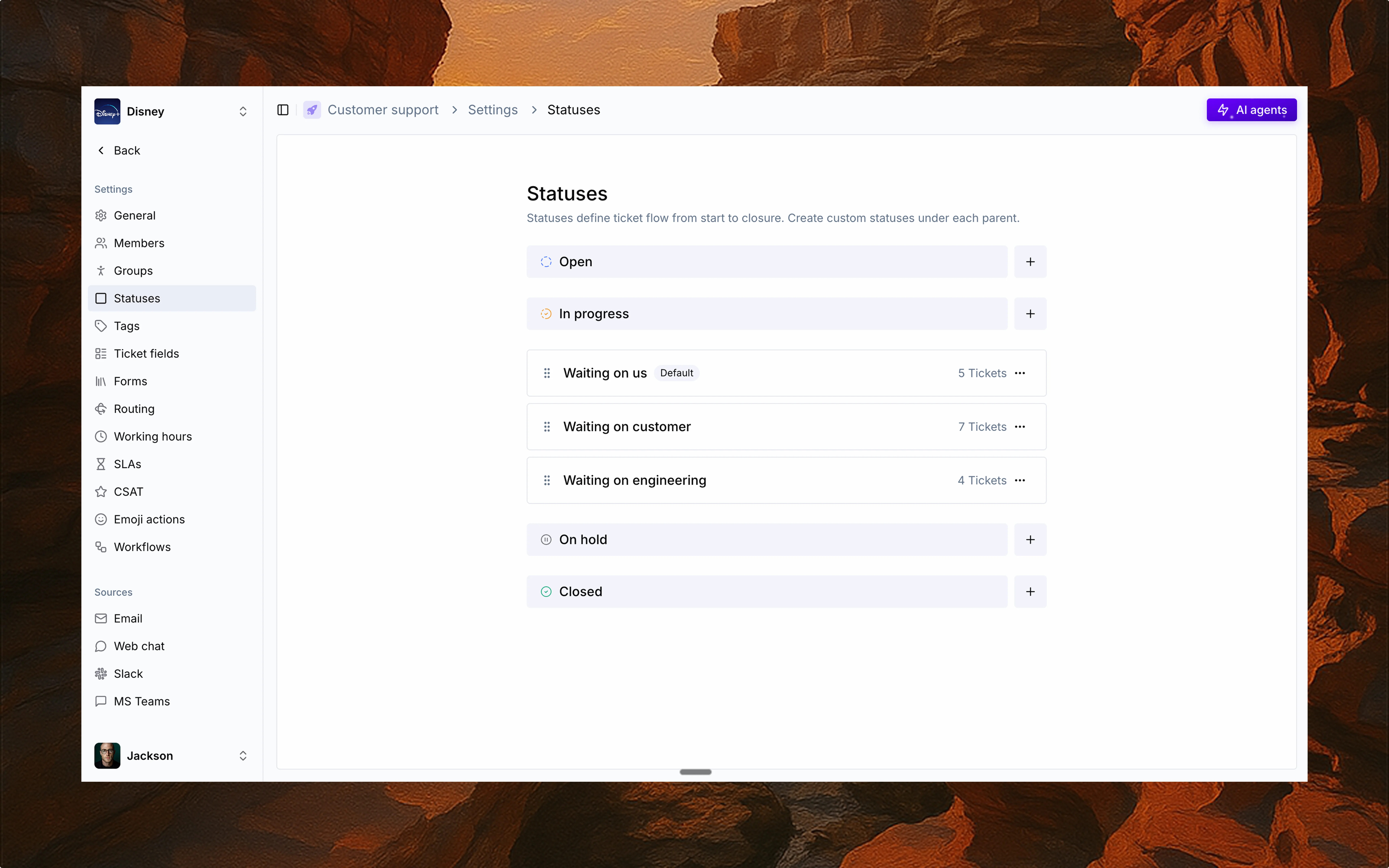 Statuses define how tickets move through their lifecycle—from creation to closure. They
help your team organize work, track progress, and power automation.
Thena supports custom statuses grouped under four fixed parent categories.
## Parent status categories
Every status must belong to one of these system-defined parents:
Newly created tickets waiting to be processed
Tickets actively being worked on by your team
Tickets temporarily paused or waiting for something
Tickets that have been completed or resolved
### Examples under In progress:
Default status when your team needs to take action
Paused while awaiting customer response
Blocked on technical work or development
Custom statuses let you reflect real ticket states while keeping your board structured.
## Board and swim lanes
Each parent status becomes a swim lane on your ticket board:
* Custom statuses act as filters within each lane
* Tickets can be easily dragged and dropped across statuses
Your team gets a live view of what's active, delayed, or done.
## Updating ticket status
Change status by dragging tickets between columns
Update via dropdown menu in the ticket details
Find the right status with searchable dropdown
Automate status changes based on triggers like customer responses or field updates
Let AI change status based on context and programmed behaviors
## Workflows and automation
Statuses integrate across Thena to automate and streamline your support ops:
Start automations when tickets change status
Set time-based targets for different status types
Create filtered views based on status categories
Track metrics and performance by status
Statuses define how tickets move through their lifecycle—from creation to closure. They
help your team organize work, track progress, and power automation.
Thena supports custom statuses grouped under four fixed parent categories.
## Parent status categories
Every status must belong to one of these system-defined parents:
Newly created tickets waiting to be processed
Tickets actively being worked on by your team
Tickets temporarily paused or waiting for something
Tickets that have been completed or resolved
### Examples under In progress:
Default status when your team needs to take action
Paused while awaiting customer response
Blocked on technical work or development
Custom statuses let you reflect real ticket states while keeping your board structured.
## Board and swim lanes
Each parent status becomes a swim lane on your ticket board:
* Custom statuses act as filters within each lane
* Tickets can be easily dragged and dropped across statuses
Your team gets a live view of what's active, delayed, or done.
## Updating ticket status
Change status by dragging tickets between columns
Update via dropdown menu in the ticket details
Find the right status with searchable dropdown
Automate status changes based on triggers like customer responses or field updates
Let AI change status based on context and programmed behaviors
## Workflows and automation
Statuses integrate across Thena to automate and streamline your support ops:
Start automations when tickets change status
Set time-based targets for different status types
Create filtered views based on status categories
Track metrics and performance by status