> ## Documentation Index
> Fetch the complete documentation index at: https://docs.thena.ai/llms.txt
> Use this file to discover all available pages before exploring further.
# Snippets
> Create and use snippets to streamline your ticket responses in Thena.
 ## Overview
Snippets in Thena are reusable text templates that help agents respond to tickets faster and maintain consistency across communications. They can contain formatted text, links, lists, and other rich content that can be quickly inserted into ticket replies.
Team snippets enable standardized responses across your support organization with consistent messaging and faster onboarding for new team members.
Rich content support including text formatting, lists, code blocks, links, headings, and blockquotes for comprehensive responses.
## Create and manage snippets
Admins and agents can create snippets under Team settings > Snippets. Each snippet includes:
* **Name**: A descriptive identifier for easy searching
* **Content**: Rich text content with formatting, links, and lists
* **Accessibility**: Control who can use the snippet (Private or Team)
Only visible to you—perfect for personal templates and frequently used responses.
Shared across your entire team—ideal for standardized responses and company policies.
## Creating your snippets
1. Navigate to Settings > Snippets in your team dashboard
2. Click "Create snippet" to build your first template
3. Add a descriptive name and your content
4. Choose Private for personal use or Team to share
5. Start using snippets in ticket replies with `/snippet`
## Managing your snippets
The snippet management interface provides full control over your templates:
Preview the full content and formatting of any snippet before using it.
Update content, change accessibility, or rename snippets as needed.
Remove outdated or unused snippets to keep your library organized.
Quickly find specific snippets by name using the built-in search functionality.
## Using snippets in conversations
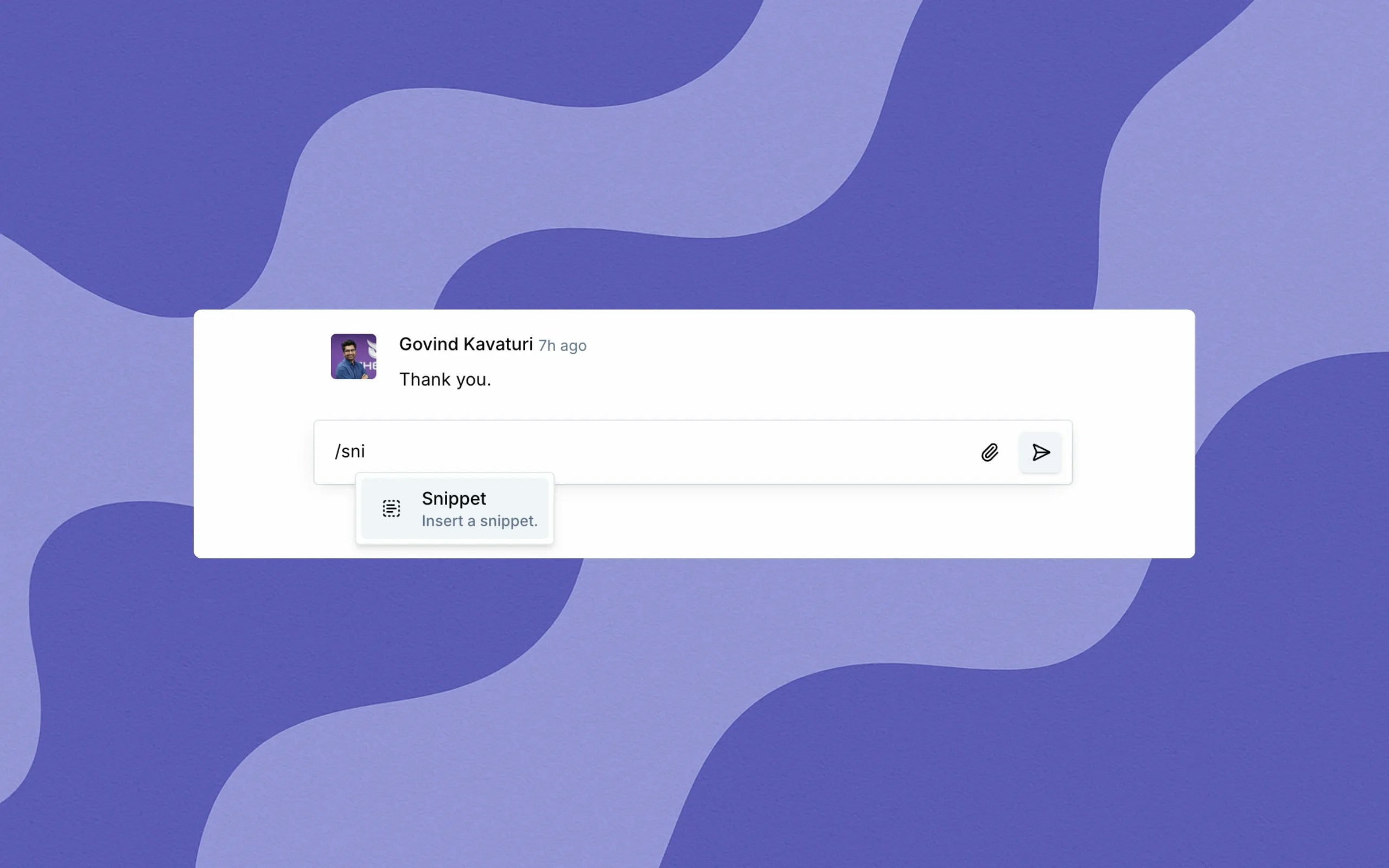
1. In any ticket reply field, type `/` and select the snippet option from the dropdown or type `/snippet`
2. A popup will display all available snippets
3. Search by name to quickly find the right snippet
4. Click to insert the content directly into your message
Use descriptive names for your snippets to make them easier to find when you need them most.
## Rich content support
Snippets support all the formatting options available in Thena's rich text editor:
* **Text formatting**: Bold, italic, strikethrough
* **Lists**: Bulleted and numbered lists
* **Code blocks**: For technical responses
* **Links**: Direct links to resources or documentation
* **Headings**: Structure longer responses
* **Blockquotes**: Highlight important information
## Overview
Snippets in Thena are reusable text templates that help agents respond to tickets faster and maintain consistency across communications. They can contain formatted text, links, lists, and other rich content that can be quickly inserted into ticket replies.
Team snippets enable standardized responses across your support organization with consistent messaging and faster onboarding for new team members.
Rich content support including text formatting, lists, code blocks, links, headings, and blockquotes for comprehensive responses.
## Create and manage snippets
Admins and agents can create snippets under Team settings > Snippets. Each snippet includes:
* **Name**: A descriptive identifier for easy searching
* **Content**: Rich text content with formatting, links, and lists
* **Accessibility**: Control who can use the snippet (Private or Team)
Only visible to you—perfect for personal templates and frequently used responses.
Shared across your entire team—ideal for standardized responses and company policies.
## Creating your snippets
1. Navigate to Settings > Snippets in your team dashboard
2. Click "Create snippet" to build your first template
3. Add a descriptive name and your content
4. Choose Private for personal use or Team to share
5. Start using snippets in ticket replies with `/snippet`
## Managing your snippets
The snippet management interface provides full control over your templates:
Preview the full content and formatting of any snippet before using it.
Update content, change accessibility, or rename snippets as needed.
Remove outdated or unused snippets to keep your library organized.
Quickly find specific snippets by name using the built-in search functionality.
## Using snippets in conversations
1. In any ticket reply field, type `/` and select the snippet option from the dropdown or type `/snippet`
2. A popup will display all available snippets
3. Search by name to quickly find the right snippet
4. Click to insert the content directly into your message
Use descriptive names for your snippets to make them easier to find when you need them most.
## Rich content support
Snippets support all the formatting options available in Thena's rich text editor:
* **Text formatting**: Bold, italic, strikethrough
* **Lists**: Bulleted and numbered lists
* **Code blocks**: For technical responses
* **Links**: Direct links to resources or documentation
* **Headings**: Structure longer responses
* **Blockquotes**: Highlight important information