> ## Documentation Index
> Fetch the complete documentation index at: https://docs.thena.ai/llms.txt
> Use this file to discover all available pages before exploring further.

# Move tickets

> Transfer tickets between teams while preserving context and maintaining communication continuity.

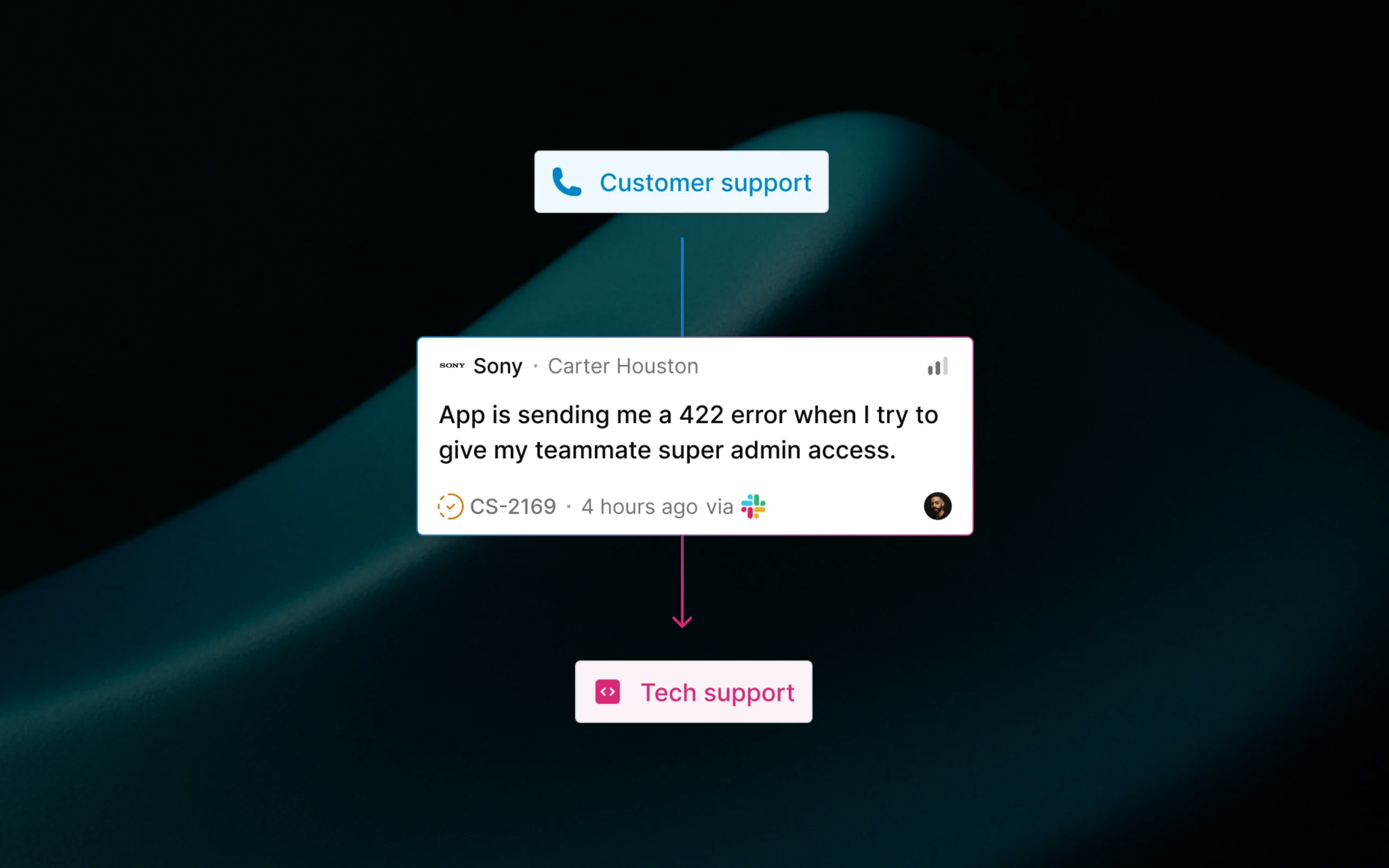
<img src="https://mintcdn.com/thena-840ce5ec/fnPhXvYfm-TNmZho/images/docs/Move-tickets.webp?fit=max&auto=format&n=fnPhXvYfm-TNmZho&q=85&s=fd36155705724a6799a5a7443f6a6b36" alt="Moving a ticket between teams in Thena" className="rounded-lg" width="2560" height="1600" data-path="images/docs/Move-tickets.webp" />

Moving tickets between teams in Thena enables seamless handoffs when customer issues require specialized expertise, escalation, or different departmental ownership. Whether it's escalating a support ticket to engineering or transferring a billing inquiry to finance, ticket moves preserve all context while ensuring the right team takes ownership.

## What ticket moving does

When you move a ticket between teams, Thena creates a new ticket in the destination team while preserving all conversation history, attachments, and context from the original ticket while archiving the current ticket.

The process ensures:

* Complete conversation history transfers to the new team.
* Customer communication continues seamlessly on the same channel.
* Both tickets are linked as related for a full audit trail.
* Team-specific workflows and SLAs are applied immediately.

## Why move tickets between teams

<CardGroup cols={2}>
  <Card title="Specialized expertise" icon="user-gear">
    Route complex technical issues from support to engineering teams for deeper analysis.
  </Card>

  <Card title="Department handoffs" icon="arrow-right-arrow-left">
    Transfer billing questions from support to finance, or product feedback to product teams.
  </Card>

  <Card title="Escalation workflows" icon="sitemap">
    Move high-priority issues to specialized teams with faster SLAs or senior expertise.
  </Card>

  <Card title="Clean team metrics" icon="chart-line">
    Each team's performance is measured independently without cross-team SLA confusion.
  </Card>
</CardGroup>

## How to move a ticket

<Steps>
  <Step title="Open the ticket you want to move">
    Navigate to any ticket that needs to be transferred to another team.
  </Step>

  <Step title="Click the three dots (⋯) menu">
    This is located in the top-center of the ticket view.
  </Step>

  <Step title="Select 'Move to team'">
    A dialog will appear showing compatible destination teams.
  </Step>

  <Step title="Choose the destination team">
    Select from the list of teams where you have permission to move tickets. Private teams require membership.
  </Step>

  <Step title="Confirm the move">
    Click "Move ticket" to start the migration process. You'll be redirected to the new ticket automatically.
  </Step>
</Steps>

<Tip>
  Use <kbd>Shift</kbd> + <kbd>M</kbd> to quickly open the move ticket dialog on any ticket.
</Tip>

<Tip>
  You can only move tickets to teams that you are a part of. If you want to move a ticket to a team you don't have access to, join the team first, and then move the ticket.
</Tip>

## Bulk move tickets

When you need to move multiple tickets at once, Thena provides a bulk move feature that lets you select and migrate several tickets to the same destination team in one operation.

<Steps>
  <Step title="Select multiple tickets">
    Switch to list view and use the checkboxes on each ticket card to select the tickets you want to move.
  </Step>

  <Step title="Open bulk move dialog">
    Once you have tickets selected, click the "Move" button that appears in the bulk actions toolbar at the bottom.
  </Step>

  <Step title="Review eligibility">
    The dialog shows a summary of your selected tickets with their eligibility status. You'll see which tickets can be moved and which cannot, along with reasons for any restrictions.
  </Step>

  <Step title="Choose destination team">
    Select the destination team from the dropdown. Only teams compatible with all eligible tickets will be available.
  </Step>

  <Step title="Start bulk migration">
    Click "Move X Tickets" to start the process. You'll see real-time progress as each ticket is migrated.
  </Step>
</Steps>

<Tip>
  You can close the migration dialog and let bulk moves run in the background. The system will continue processing all eligible tickets even if you navigate away.
</Tip>

## What happens during a move

<AccordionGroup>
  <Accordion title="Ticket creation and archival" icon="copy">
    <ul className="ml-6 space-y-2">
      <li>A new ticket is created in the destination team with a new ticket number.</li>
      <li>The original ticket is archived and marked with migration details.</li>
      <li>Both tickets are automatically linked as related for a complete audit trail.</li>
    </ul>
  </Accordion>

  <Accordion title="Data and context transfer" icon="database">
    <ul className="ml-6 space-y-2">
      <li>All conversation history is copied to the new ticket.</li>
      <li>File attachments and internal notes are transferred.</li>
      <li>Internal threads from both Slack and the platform are also transferred.</li>
      <li>Custom field values specific to a team are not transferred.</li>
      <li>Ticket activity records the migration for both tickets.</li>
    </ul>
  </Accordion>

  <Accordion title="Team workflow application" icon="wrench">
    <ul className="ml-6 space-y-2">
      <li>The destination team's SLA timeline starts fresh.</li>
      <li>The source team's SLA is paused and CSAT surveys are cancelled.</li>
      <li>The new team's auto-responders and workflows are applied.</li>
      <li>Team-specific statuses, priorities, and types are mapped.</li>
    </ul>
  </Accordion>
</AccordionGroup>

## Smart ticket restoration

**Returning to original teams**

When moving a ticket back to a team it was previously in, Thena intelligently restores the original ticket instead of creating a new one. This maintains the original ticket number for customers and resumes the SLA from where it was paused.

For example: SUP-123 → SEC-456 → SUP-123 (restored)

## Real-world examples

<AccordionGroup>
  <Accordion title="Support to engineering escalation" icon="code">
    <p><strong>Scenario:</strong> A customer reports a login issue that appears to be a backend bug.</p>

    <ul className="mt-2 ml-6 space-y-2">
      <li>The support team creates the initial ticket SUP-245.</li>
      <li>After initial triage, they move it to Engineering as ENG-892.</li>
      <li>The engineering team gets the full context and can reproduce the issue.</li>
      <li>The customer continues communicating in the same Slack thread.</li>
      <li>Both teams maintain separate SLA and performance metrics.</li>
    </ul>
  </Accordion>

  <Accordion title="Billing department handoff" icon="credit-card">
    <p><strong>Scenario:</strong> A customer requests a refund through general support.</p>

    <ul className="mt-2 ml-6 space-y-2">
      <li>Support receives the request as SUP-156.</li>
      <li>They move it to the Billing team as BILL-089.</li>
      <li>The billing team sees all previous customer communication.</li>
      <li>The customer receives the Billing team's auto-responder with updated expectations.</li>
      <li>Finance processes the refund with complete context.</li>
    </ul>
  </Accordion>

  <Accordion title="Product feedback routing" icon="lightbulb">
    <p><strong>Scenario:</strong> A customer suggests a feature improvement during a support interaction.</p>

    <ul className="mt-2 ml-6 space-y-2">
      <li>Support documents the feedback in SUP-301.</li>
      <li>They move it to the Product team as PROD-78.</li>
      <li>The product team can analyze the feature request with customer context.</li>
      <li>The original support ticket is resolved, and the product ticket continues internally.</li>
      <li>The customer stays informed about their feature request.</li>
    </ul>
  </Accordion>
</AccordionGroup>

## Important considerations

<Card>
  <div className="space-y-2">
    <div>
      <h3 className="font-medium">🎯 Ticket number changes</h3>
      <p className="mt-1">Customers will see a new ticket number when communicating about the issue (e.g., SUP-123 becomes SEC-456). However, they continue using the same communication channel.</p>
    </div>

    <div>
      <h3 className="font-medium">⏰ SLA timeline reset</h3>
      <p className="mt-1">The destination team gets a fresh SLA timeline, which may extend the total resolution time from the customer's perspective.</p>
    </div>

    <div>
      <h3 className="font-medium">🔐 Team permissions required</h3>
      <p className="mt-1">You can only move tickets to teams where you have access. Private teams require membership.</p>
    </div>

    <div>
      <h3 className="font-medium">📋 Form compatibility</h3>
      <p className="mt-1">Custom field values transfer when compatible between team forms. Incompatible fields are preserved in the archived ticket.</p>
    </div>
  </div>
</Card>
