> ## Documentation Index
> Fetch the complete documentation index at: https://docs.thena.ai/llms.txt
> Use this file to discover all available pages before exploring further.

# CSAT

> Measure customer satisfaction and improve your support quality.

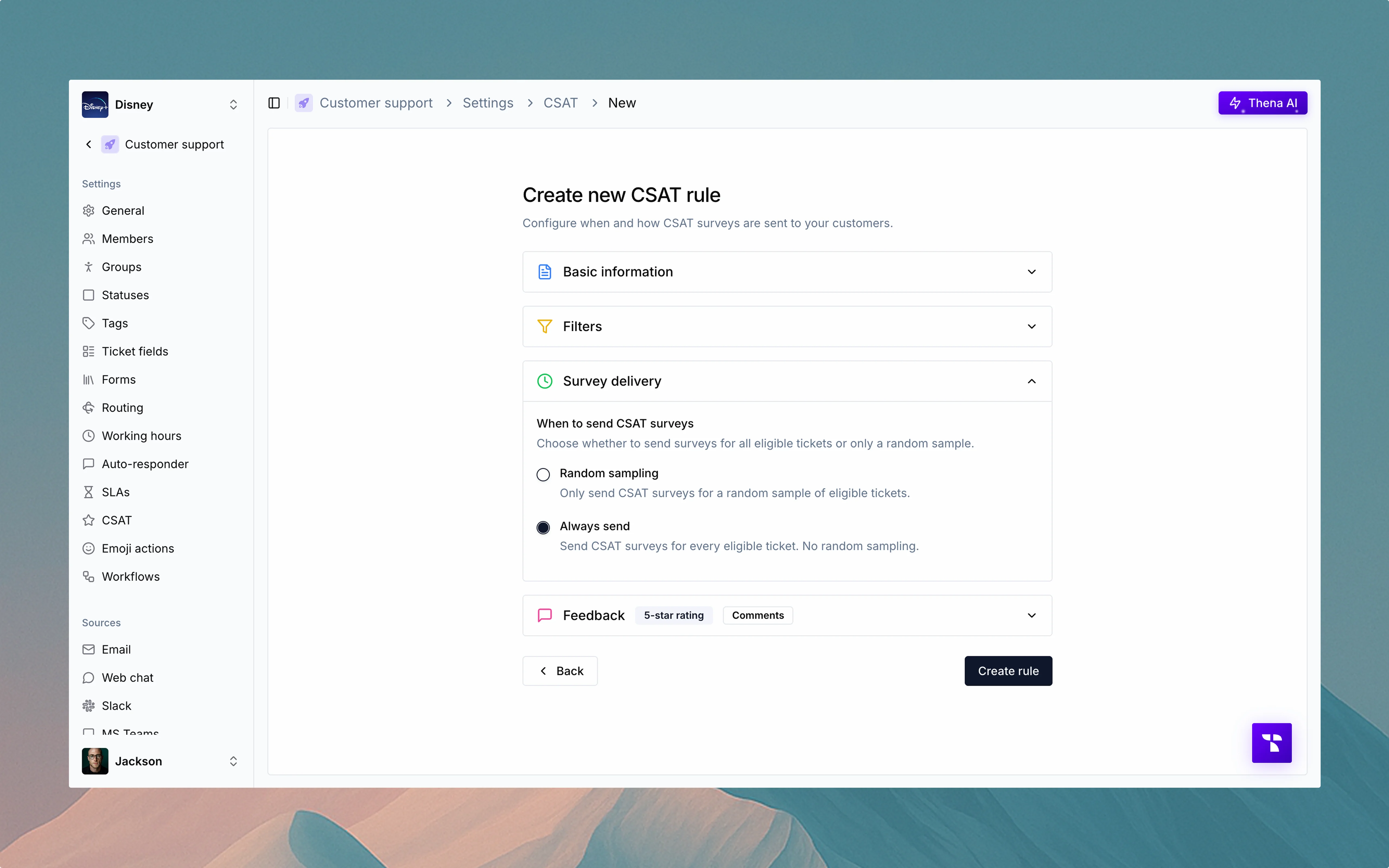
<img src="https://mintcdn.com/thena-840ce5ec/qw0IBJ-u1Oc1t24_/images/docs/CSAT.webp?fit=max&auto=format&n=qw0IBJ-u1Oc1t24_&q=85&s=62a8fb71524af3a64cd3029f85a1348c" alt="CSAT configuration in Thena" className="rounded-lg" width="5120" height="3200" data-path="images/docs/CSAT.webp" />

## Overview

Customer Satisfaction (CSAT) surveys help you gather valuable feedback from customers after support interactions, providing insights to improve your service quality.

<Card>
  <div className="flex items-center">
    <span className="mr-2">✨</span>
    <span className="font-semibold">Comprehensive CSAT solution</span>
  </div>

  <p className="ml-6">Create targeted rules to collect feedback at the right time from the right customers.</p>

  <div className="ml-6 mt-3">
    <div className="flex items-center mb-2">
      <div className="h-5 w-5 mr-2 flex-shrink-0 bg-green-500 rounded text-white flex items-center justify-center">
        <svg viewBox="0 0 20 20" fill="currentColor" className="h-3 w-3">
          <path fillRule="evenodd" d="M16.707 5.293a1 1 0 010 1.414l-8 8a1 1 0 01-1.414 0l-4-4a1 1 0 011.414-1.414L8 12.586l7.293-7.293a1 1 0 011.414 0z" clipRule="evenodd" />
        </svg>
      </div>

      <span>Trigger surveys based on ticket properties like status, priority, or sentiment</span>
    </div>

    <div className="flex items-center mb-2">
      <div className="h-5 w-5 mr-2 flex-shrink-0 bg-green-500 rounded text-white flex items-center justify-center">
        <svg viewBox="0 0 20 20" fill="currentColor" className="h-3 w-3">
          <path fillRule="evenodd" d="M16.707 5.293a1 1 0 010 1.414l-8 8a1 1 0 01-1.414 0l-4-4a1 1 0 011.414-1.414L8 12.586l7.293-7.293a1 1 0 011.414 0z" clipRule="evenodd" />
        </svg>
      </div>

      <span>Deliver surveys via Slack or email based on ticket source</span>
    </div>

    <div className="flex items-center mb-2">
      <div className="h-5 w-5 mr-2 flex-shrink-0 bg-green-500 rounded text-white flex items-center justify-center">
        <svg viewBox="0 0 20 20" fill="currentColor" className="h-3 w-3">
          <path fillRule="evenodd" d="M16.707 5.293a1 1 0 010 1.414l-8 8a1 1 0 01-1.414 0l-4-4a1 1 0 011.414-1.414L8 12.586l7.293-7.293a1 1 0 011.414 0z" clipRule="evenodd" />
        </svg>
      </div>

      <span>Customize survey content, delivery cadence, and sampling logic</span>
    </div>

    <div className="flex items-center">
      <div className="h-5 w-5 mr-2 flex-shrink-0 bg-green-500 rounded text-white flex items-center justify-center">
        <svg viewBox="0 0 20 20" fill="currentColor" className="h-3 w-3">
          <path fillRule="evenodd" d="M16.707 5.293a1 1 0 010 1.414l-8 8a1 1 0 01-1.414 0l-4-4a1 1 0 011.414-1.414L8 12.586l7.293-7.293a1 1 0 011.414 0z" clipRule="evenodd" />
        </svg>
      </div>

      <span>Add cooldowns to prevent survey fatigue</span>
    </div>
  </div>
</Card>

## Creating CSAT rules

<Steps>
  <Step title="Start creating a CSAT rule">
    Go to the CSAT section and click "Create new rule." You'll be guided through five sections: basic information, filters, survey delivery, feedback form, and preview.
  </Step>

  <Step title="Enter basic information">
    <p>This section defines the metadata of your CSAT rule:</p>

    <ul className="mt-2 ml-6 space-y-2">
      <li><strong>Rule name:</strong> Give your rule a recognizable name, such as "High priority tickets."</li>
      <li><strong>Description:</strong> (optional) Add any context for your team.</li>
      <li><strong>Active toggle:</strong> Only active rules will send CSAT surveys. Inactive rules will be saved but not executed.</li>
    </ul>
  </Step>

  <Step title="Set up filters (trigger conditions)">
    <p>Filters define which tickets are eligible to receive a CSAT survey.</p>

    <div className="mt-3">
      <h4 className="font-medium">Match all conditions</h4>
      <p className="mt-1">All conditions in this group must be true to trigger a survey. For example:</p>

      <ul className="mt-2 ml-6 space-y-1">
        <li>Priority equals High</li>
        <li>Status equals Resolved</li>
        <li>Type equals Incident</li>
      </ul>

      <p className="mt-2">You can apply filters on ticket, account, or contact fields.</p>
    </div>

    <div className="mt-4">
      <h4 className="font-medium">Match any conditions</h4>
      <p className="mt-1">If any condition in this group is true, the survey will be triggered. For example:</p>

      <ul className="mt-2 ml-6">
        <li>Sentiment contains Positive</li>
      </ul>

      <p className="mt-2">This is useful when you want broader but still targeted coverage.</p>
    </div>
  </Step>

  <Step title="Choose survey delivery behavior">
    <p>This section defines how often CSAT surveys are sent once tickets meet the filter conditions.</p>

    <div className="mt-3">
      <h4 className="font-medium">Random sampling</h4>
      <p className="mt-1">Send CSATs to a subset of eligible tickets:</p>

      <ul className="mt-2 ml-6 space-y-1">
        <li>1 out of 10 tickets (10%)</li>
        <li>1 out of 5 tickets (20%)</li>
      </ul>

      <p className="mt-2">Use this to reduce survey fatigue or for A/B testing.</p>
    </div>

    <div className="mt-4">
      <h4 className="font-medium">Always send</h4>
      <p className="mt-1">Send a CSAT for every ticket that meets the criteria—no sampling involved.</p>
    </div>
  </Step>

  <Step title="Configure the feedback form">
    <p>This section lets you define the survey format and appearance.</p>

    <div className="mt-3">
      <h4 className="font-medium">Choose feedback type</h4>

      <ul className="mt-2 ml-6 space-y-1">
        <li><strong>5-star rating:</strong> Ask customers to rate their experience from 1 to 5 stars.</li>
        <li><strong>Thumbs up/down:</strong> Ask for a simple positive or negative response.</li>
      </ul>
    </div>

    <div className="mt-4">
      <h4 className="font-medium">Choose delivery channel</h4>

      <ul className="mt-2 ml-6 space-y-2">
        <li>
          <strong>Source-based delivery:</strong>

          <ul className="mt-1 ml-6 space-y-1">
            <li>If the ticket is from Slack, the CSAT survey is sent in the ticket thread as an ephemeral message that mentions the requester.</li>
            <li>If the ticket is from email, the survey is delivered via email.</li>
          </ul>
        </li>

        <li>
          <strong>Email override:</strong>

          <ul className="mt-1 ml-6">
            <li>You can force all CSATs to be delivered via email, regardless of where the ticket originated.</li>
          </ul>
        </li>
      </ul>
    </div>

    <div className="mt-4">
      <h4 className="font-medium">Customize survey content</h4>
      <p className="mt-1">You can modify the following elements:</p>

      <ul className="mt-2 ml-6 space-y-1">
        <li><strong>Survey title</strong> (e.g., "How would you rate your experience?")</li>
        <li><strong>Survey message</strong> (e.g., "Please let us know how we did with your recent support request.")</li>
        <li><strong>Thank you message</strong></li>
        <li><strong>Branding color:</strong> This controls the primary color used for buttons and rating icons.</li>

        <li>
          <strong>Comment field:</strong> You can enable an optional open-text field for additional feedback.

          <ul className="mt-1 ml-6">
            <li>Customize the field label and placeholder text.</li>
          </ul>
        </li>
      </ul>
    </div>
  </Step>

  <Step title="Preview the survey">
    <p>Click the "Preview" tab to see how your CSAT survey will appear to customers.</p>

    <ul className="mt-2 ml-6 space-y-2">
      <li><strong>Email preview</strong> shows the subject, ticket details, rating component, and optional comment field.</li>
      <li><strong>Slack preview</strong> shows how the survey will be delivered as a message in the requester's thread.</li>
    </ul>

    <p className="mt-2">You can switch between email and Slack views to compare formats.</p>
  </Step>

  <Step title="Adjust global CSAT settings">
    <p>Click "Settings" from the CSAT overview screen to configure global rules that apply to all CSATs.</p>

    <div className="mt-3">
      <h4 className="font-medium">Delivery delay</h4>
      <p className="mt-1">Set how many days after a ticket is closed a CSAT survey should be sent (e.g., 14 days). This gives customers breathing room before being asked for feedback.</p>
    </div>

    <div className="mt-3">
      <h4 className="font-medium">Customer cooldown</h4>
      <p className="mt-1">Set a cooldown period (e.g., 10 days) to ensure a customer doesn't receive multiple CSATs within a short timeframe. This prevents survey fatigue.</p>
    </div>

    <div className="mt-3">
      <h4 className="font-medium">Trigger statuses</h4>
      <p className="mt-1">Choose which ticket status triggers the CSAT survey. By default, surveys trigger on Closed tickets.</p>
    </div>

    <div className="mt-3">
      <h4 className="font-medium">Sender email</h4>
      <p className="mt-1">Decide which email address will be used to send CSAT surveys. You can use the default or configure a custom one.</p>
    </div>
  </Step>

  <Step title="Save and activate the rule">
    <p>Once everything is configured:</p>

    <ul className="mt-2 ml-6 space-y-2">
      <li>Click "Create rule" to save your setup.</li>
      <li>Make sure the rule toggle is set to Active if you want it to go live immediately.</li>
    </ul>
  </Step>
</Steps>

## Key features

<CardGroup cols={2}>
  <Card title="Slack delivery" icon="slack">
    <style jsx>
      {`
                svg {
                  color: #6A00FF !important;
                  fill: #6A00FF !important;
                }
              `}
    </style>

    Delivered in the ticket thread as an ephemeral message with a requester mention.
  </Card>

  <Card title="Email delivery" icon="envelope">
    <style jsx>
      {`
                svg {
                  color: #6A00FF !important;
                  fill: #6A00FF !important;
                }
              `}
    </style>

    Sent directly to the requester's email with customizable design.
  </Card>

  <Card title="Email override" icon="envelope-circle-check">
    <style jsx>
      {`
                svg {
                  color: #6A00FF !important;
                  fill: #6A00FF !important;
                }
              `}
    </style>

    Option to always send CSATs via email, regardless of ticket source.
  </Card>

  <Card title="Cooldown period" icon="clock-rotate-left">
    <style jsx>
      {`
                svg {
                  color: #6A00FF !important;
                  fill: #6A00FF !important;
                }
              `}
    </style>

    Prevents the same customer from receiving CSATs too frequently.
  </Card>
</CardGroup>

<CardGroup cols={2}>
  <Card title="Delivery delay" icon="hourglass-half">
    <style jsx>
      {`
                svg {
                  color: #6A00FF !important;
                  fill: #6A00FF !important;
                }
              `}
    </style>

    Controls how soon after ticket closure the CSAT is sent.
  </Card>

  <Card title="Filter rules" icon="filter">
    <style jsx>
      {`
                svg {
                  color: #6A00FF !important;
                  fill: #6A00FF !important;
                }
              `}
    </style>

    Target specific tickets based on custom logic (e.g., sentiment, priority).
  </Card>

  <Card title="Sampling options" icon="percent">
    <style jsx>
      {`
                svg {
                  color: #6A00FF !important;
                  fill: #6A00FF !important;
                }
              `}
    </style>

    Choose between 100%, 20%, or 10% of qualifying tickets.
  </Card>

  <Card title="Custom feedback UI" icon="palette">
    <style jsx>
      {`
                svg {
                  color: #6A00FF !important;
                  fill: #6A00FF !important;
                }
              `}
    </style>

    Fully customizable survey content, colors, and comment settings.
  </Card>
</CardGroup>

## Best practices

<AccordionGroup>
  <Accordion title="Timing is everything" icon="clock">
    <ul className="ml-6 space-y-2">
      <li>Set appropriate delivery delays to give customers time to experience the full impact of your solution.</li>
      <li>Use cooldown periods to prevent survey fatigue.</li>
      <li>Consider sending surveys shortly after resolution for technical issues, but allow more time for complex solutions.</li>
    </ul>
  </Accordion>

  <Accordion title="Target the right audience" icon="bullseye">
    <ul className="ml-6 space-y-2">
      <li>Use filters to target specific ticket types that would benefit most from feedback.</li>
      <li>Consider sampling for high-volume, low-complexity tickets.</li>
      <li>Always survey after critical incidents or high-priority tickets.</li>
    </ul>
  </Accordion>

  <Accordion title="Optimize for response rates" icon="chart-line">
    <ul className="ml-6 space-y-2">
      <li>Keep surveys short and focused.</li>
      <li>Use the right delivery channel based on where the customer is most engaged.</li>
      <li>Personalize the survey message to increase relevance.</li>
      <li>Make the comment field optional to reduce friction.</li>
    </ul>
  </Accordion>
</AccordionGroup>
