> ## Documentation Index
> Fetch the complete documentation index at: https://docs.thena.ai/llms.txt
> Use this file to discover all available pages before exploring further.
# Setup
> Configure the foundation for your teams, members, and access controls.
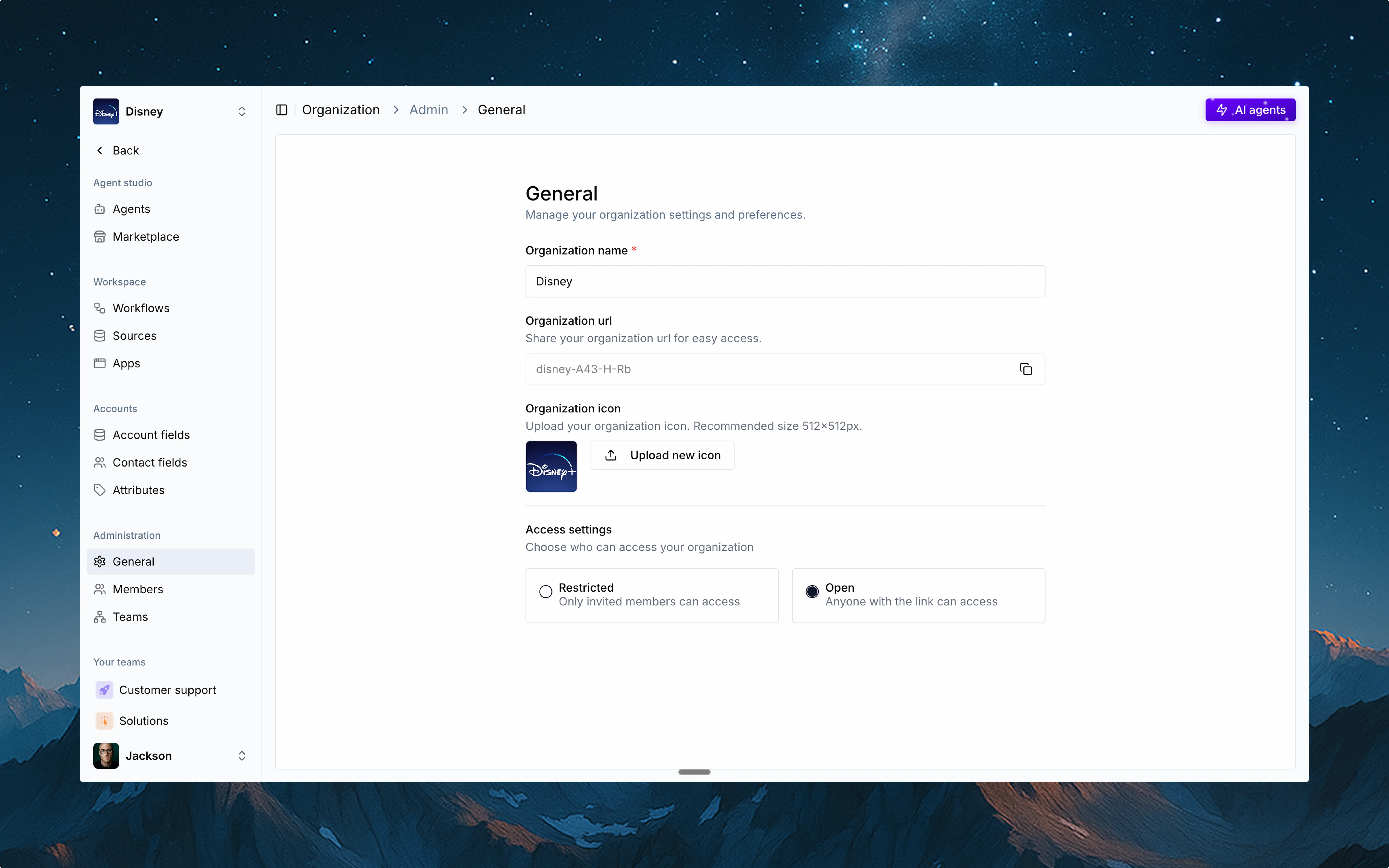 Your organization in Thena is the foundation for everything—teams, members, and access controls. Here's how it's structured and what you can customize:
## 🏷️ Organization name
Every organization has a name that helps your teams identify the workspace. You can update this name anytime to match your branding or internal naming conventions.
## 🌐 Organization URL
Thena automatically generates a unique URL for your org. This is useful for easy access and sharing—especially for larger teams.
If your organization is set to Open, anyone with a matching domain (e.g., @acme.com) can access the org and join any non-private teams.
If your organization is set to Restricted, the org URL will not work for self-joins. Users must be invited explicitly by existing members.
## 🔒 Access settings
Choose how users can access your org:
Only invited members can join.
Anyone with the link and a verified domain can enter and collaborate (except on private teams).
This setup ensures your organization is both easy to find for the right people and securely segmented where needed.
Your organization in Thena is the foundation for everything—teams, members, and access controls. Here's how it's structured and what you can customize:
## 🏷️ Organization name
Every organization has a name that helps your teams identify the workspace. You can update this name anytime to match your branding or internal naming conventions.
## 🌐 Organization URL
Thena automatically generates a unique URL for your org. This is useful for easy access and sharing—especially for larger teams.
If your organization is set to Open, anyone with a matching domain (e.g., @acme.com) can access the org and join any non-private teams.
If your organization is set to Restricted, the org URL will not work for self-joins. Users must be invited explicitly by existing members.
## 🔒 Access settings
Choose how users can access your org:
Only invited members can join.
Anyone with the link and a verified domain can enter and collaborate (except on private teams).
This setup ensures your organization is both easy to find for the right people and securely segmented where needed.