> ## Documentation Index
> Fetch the complete documentation index at: https://docs.thena.ai/llms.txt
> Use this file to discover all available pages before exploring further.
# Getting started
> Everything you need to go live with Thena in minutes.
 Thena is your intelligent platform for customer collaboration, purpose-built for the modern enterprise. Whether you're streamlining support, accelerating success, or aligning teams across functions — you're in the right place. Let's get you up and running in no time.
## Step 1: Sign up
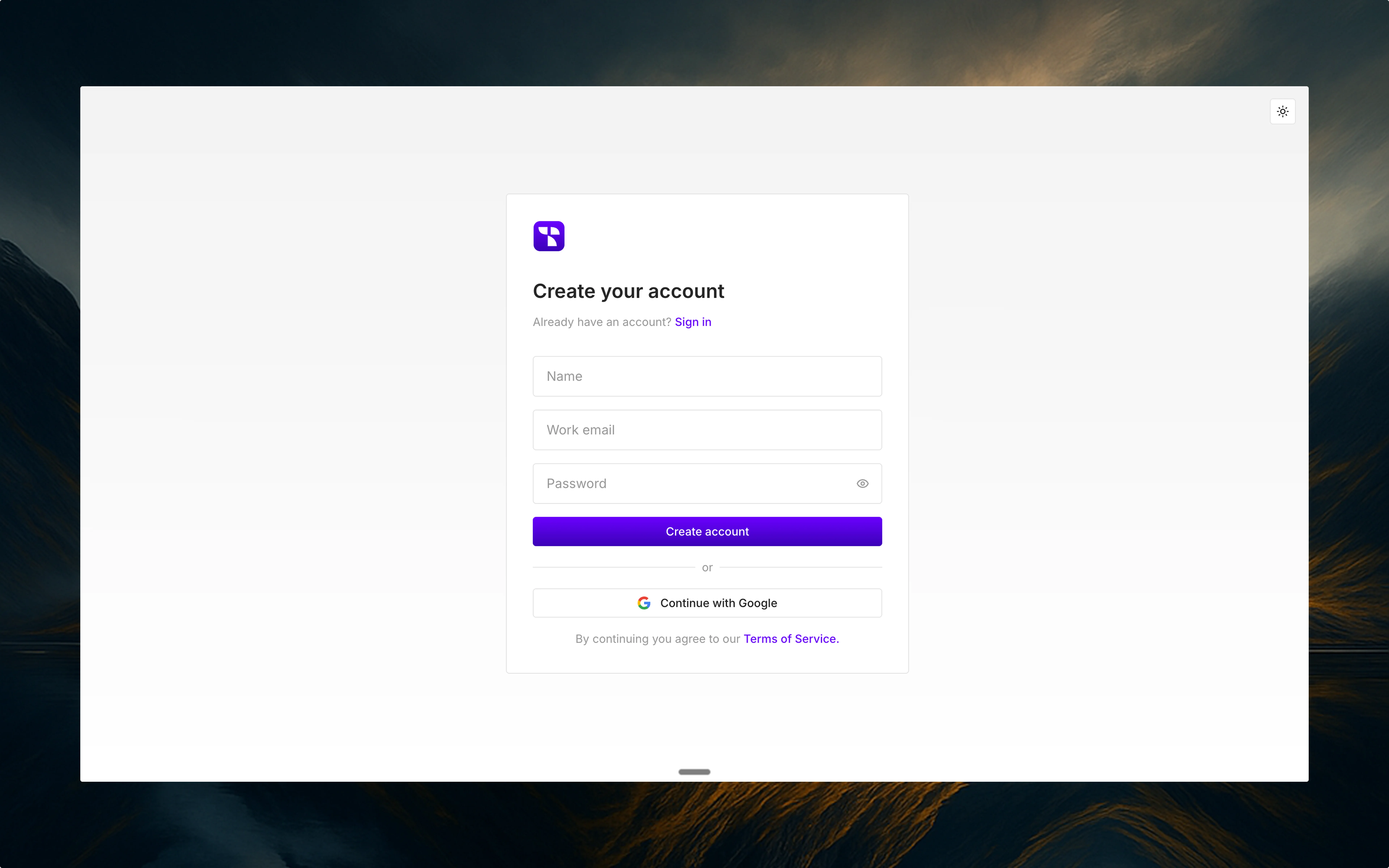
Visit [thena.ai](https://thena.ai) and click Sign up to create your account. All you need is your work email address to get started. Make sure to use your official domain email (e.g. [yourname@company.com](mailto:yourname@company.com)) so we can connect you to the right organization.
## Step 2: Receive verification email
After signing up, you'll receive a verification email. Open your inbox and click the Verify email button to confirm your account. This step secures your identity and unlocks the next stage of setup.
Didn't receive the email? Check your spam folder or request a resend from the login page.
## Step 3: Join an existing organization
Thena auto-detects existing organizations under your email domain. If your company already has a presence on Thena:
* You'll be shown a list of public organizations tied to your domain
* Simply choose the one you want to join
## Step 4: Create a new organization
If there are no existing organizations under your domain, or you prefer to start fresh, you'll be prompted to create a new organization.
* If your domain is whitelisted by Thena team, you'll be allowed to proceed
* Give your organization a name
## Step 5: Set up your first team
Once your organization is ready, it's time to build your first team. Teams in Thena are where collaboration happens — they can be based on departments like support, sales, success, or even projects.
Thena is your intelligent platform for customer collaboration, purpose-built for the modern enterprise. Whether you're streamlining support, accelerating success, or aligning teams across functions — you're in the right place. Let's get you up and running in no time.
## Step 1: Sign up
Visit [thena.ai](https://thena.ai) and click Sign up to create your account. All you need is your work email address to get started. Make sure to use your official domain email (e.g. [yourname@company.com](mailto:yourname@company.com)) so we can connect you to the right organization.
## Step 2: Receive verification email
After signing up, you'll receive a verification email. Open your inbox and click the Verify email button to confirm your account. This step secures your identity and unlocks the next stage of setup.
Didn't receive the email? Check your spam folder or request a resend from the login page.
## Step 3: Join an existing organization
Thena auto-detects existing organizations under your email domain. If your company already has a presence on Thena:
* You'll be shown a list of public organizations tied to your domain
* Simply choose the one you want to join
## Step 4: Create a new organization
If there are no existing organizations under your domain, or you prefer to start fresh, you'll be prompted to create a new organization.
* If your domain is whitelisted by Thena team, you'll be allowed to proceed
* Give your organization a name
## Step 5: Set up your first team
Once your organization is ready, it's time to build your first team. Teams in Thena are where collaboration happens — they can be based on departments like support, sales, success, or even projects.
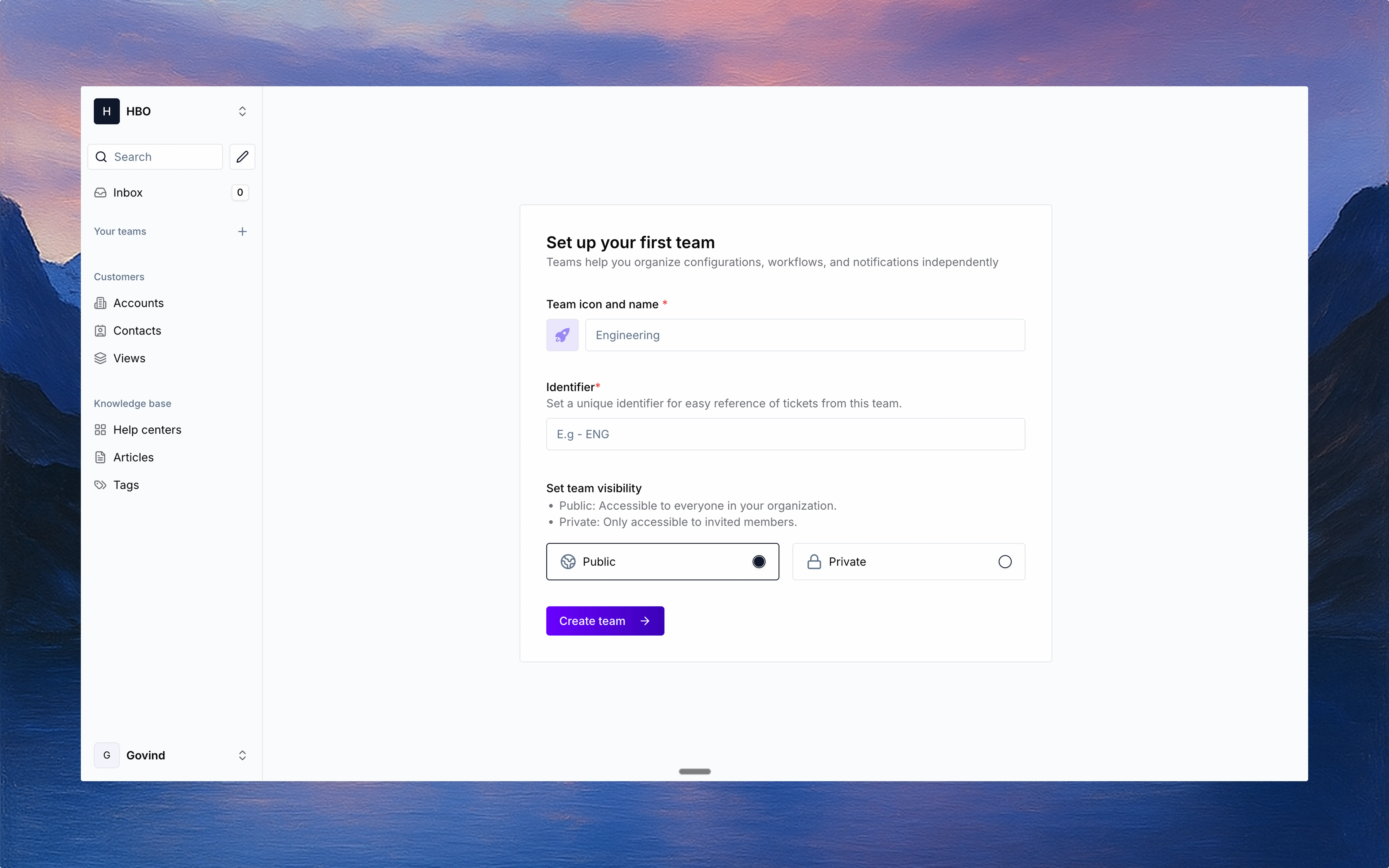 You'll be able to:
* Name your team (e.g. "Customer support" or "Onboarding team")
* Choose [team-level settings](/guides/ticketing/teams) and permissions
* Set up sources like Slack, email, or CRM integrations (optional)
## Step 6: Invite your team members
Now, bring your crew on board. Invite teammates by email to start working together in real time. You can assign roles, control access levels, and start collaborating instantly.
## You're in 🎉
Once you're in, you can explore:
Start managing customer inquiries and track issues with a powerful ticketing system.
Build custom forms to collect structured information from your customers.
Integrate your Slack workspace to collaborate with your team seamlessly.
Set up email channels to manage customer communications in one place.
Deploy AI agents to automate repetitive tasks and enhance customer interactions.
Automate processes with customizable workflows that save time and reduce errors.
View and organize customer accounts to keep track of all your relationships.
You'll be able to:
* Name your team (e.g. "Customer support" or "Onboarding team")
* Choose [team-level settings](/guides/ticketing/teams) and permissions
* Set up sources like Slack, email, or CRM integrations (optional)
## Step 6: Invite your team members
Now, bring your crew on board. Invite teammates by email to start working together in real time. You can assign roles, control access levels, and start collaborating instantly.
## You're in 🎉
Once you're in, you can explore:
Start managing customer inquiries and track issues with a powerful ticketing system.
Build custom forms to collect structured information from your customers.
Integrate your Slack workspace to collaborate with your team seamlessly.
Set up email channels to manage customer communications in one place.
Deploy AI agents to automate repetitive tasks and enhance customer interactions.
Automate processes with customizable workflows that save time and reduce errors.
View and organize customer accounts to keep track of all your relationships.