> ## Documentation Index
> Fetch the complete documentation index at: https://docs.thena.ai/llms.txt
> Use this file to discover all available pages before exploring further.
# Audiences
> Create and manage broadcast audiences with static lists and dynamic filters to target the right customers.
 ## 👥 What are broadcast audiences?
Broadcast audiences define who receives your communication campaigns. They act as reusable recipient lists that can be applied to multiple broadcasts, ensuring consistent targeting and efficient campaign management. Once you've created your audiences, you can use them in your [broadcast campaigns](/guides/broadcasts/overview) and track their performance with [detailed analytics](/guides/broadcasts/analytics).
Thena supports two powerful audience types:
* **Static audiences**: Fixed lists of specific contacts and channels you manually select
* **Dynamic audiences**: Automatically updating lists based on filter criteria that evolve with your customer data
Create multiple audiences for different customer segments (e.g., "Enterprise Customers," "Beta Users," "Support Team") to streamline your broadcast targeting.
## 📋 Creating audiences
### How to create static audiences?
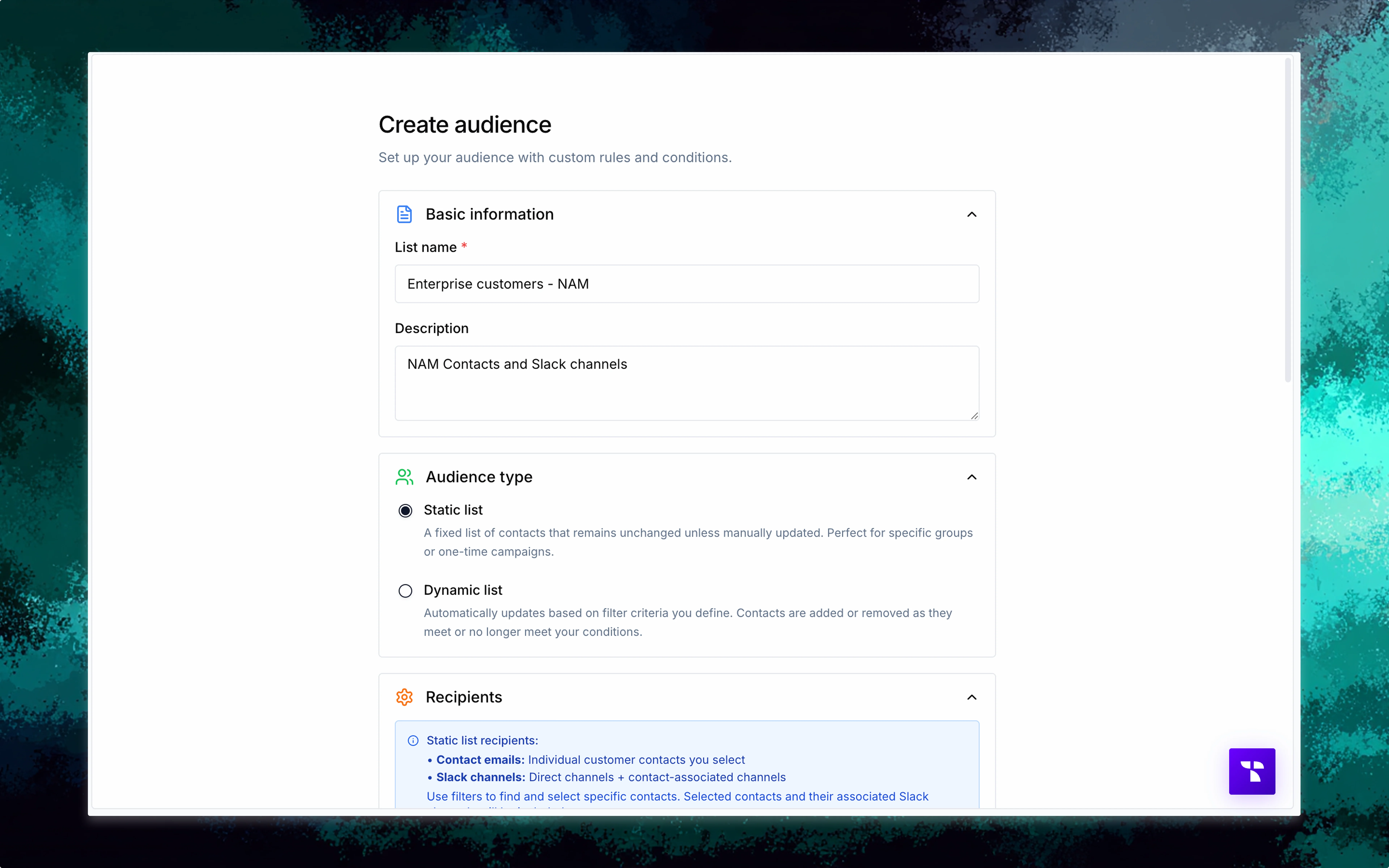
Navigate to [Audiences](https://dashboard.thena.ai/broadcasts/audiences) in the left navbar and click "+ Create audience" to start the audience creation process.
Enter the name of the audience list and then a description (optional).
Select "Static list" as the audience type.
Browse your contact database using search and filters to find specific customers, then select them using bulk selection controls.
Review your selected contacts in the preview, then click "Create audience" to save your static list.
We automatically add the Slack channels that the contact is associated with. If you want to select more Slack channels, you can select the Slack tab and choose them manually.
### How to create dynamic audiences?
Navigate to Audiences in the left navbar and click "+ Create audience" to start the audience creation process.
Enter the name of the audience list and then a description (optional).
Select "Dynamic list" as the audience type.
Create filter conditions using contact properties, account data, or custom fields with operators like "is", "contains", or "is in".
Use AND/OR logic to combine multiple conditions for precise targeting rules.
Preview the matching contacts and channels, then click "Create audience" to save your dynamic filter-based list.
Dynamic audiences automatically include Slack channels associated with contacts that match your filter criteria. The audience will update automatically as your contact data changes.
## 🔧 Audience management
### Audience dashboard
The audience management interface provides comprehensive control over your recipient lists:
View all created audiences with names, types, and recipient counts
Edit or delete audiences directly from the list view
See how many Slack channels and contacts each list contains
Search and filter using audience list type and name
## 👥 What are broadcast audiences?
Broadcast audiences define who receives your communication campaigns. They act as reusable recipient lists that can be applied to multiple broadcasts, ensuring consistent targeting and efficient campaign management. Once you've created your audiences, you can use them in your [broadcast campaigns](/guides/broadcasts/overview) and track their performance with [detailed analytics](/guides/broadcasts/analytics).
Thena supports two powerful audience types:
* **Static audiences**: Fixed lists of specific contacts and channels you manually select
* **Dynamic audiences**: Automatically updating lists based on filter criteria that evolve with your customer data
Create multiple audiences for different customer segments (e.g., "Enterprise Customers," "Beta Users," "Support Team") to streamline your broadcast targeting.
## 📋 Creating audiences
### How to create static audiences?
Navigate to [Audiences](https://dashboard.thena.ai/broadcasts/audiences) in the left navbar and click "+ Create audience" to start the audience creation process.
Enter the name of the audience list and then a description (optional).
Select "Static list" as the audience type.
Browse your contact database using search and filters to find specific customers, then select them using bulk selection controls.
Review your selected contacts in the preview, then click "Create audience" to save your static list.
We automatically add the Slack channels that the contact is associated with. If you want to select more Slack channels, you can select the Slack tab and choose them manually.
### How to create dynamic audiences?
Navigate to Audiences in the left navbar and click "+ Create audience" to start the audience creation process.
Enter the name of the audience list and then a description (optional).
Select "Dynamic list" as the audience type.
Create filter conditions using contact properties, account data, or custom fields with operators like "is", "contains", or "is in".
Use AND/OR logic to combine multiple conditions for precise targeting rules.
Preview the matching contacts and channels, then click "Create audience" to save your dynamic filter-based list.
Dynamic audiences automatically include Slack channels associated with contacts that match your filter criteria. The audience will update automatically as your contact data changes.
## 🔧 Audience management
### Audience dashboard
The audience management interface provides comprehensive control over your recipient lists:
View all created audiences with names, types, and recipient counts
Edit or delete audiences directly from the list view
See how many Slack channels and contacts each list contains
Search and filter using audience list type and name