> ## Documentation Index
> Fetch the complete documentation index at: https://docs.thena.ai/llms.txt
> Use this file to discover all available pages before exploring further.
# AI chat threads
> View and manage all AI-powered web-chat conversations across your organization in one centralized interface.
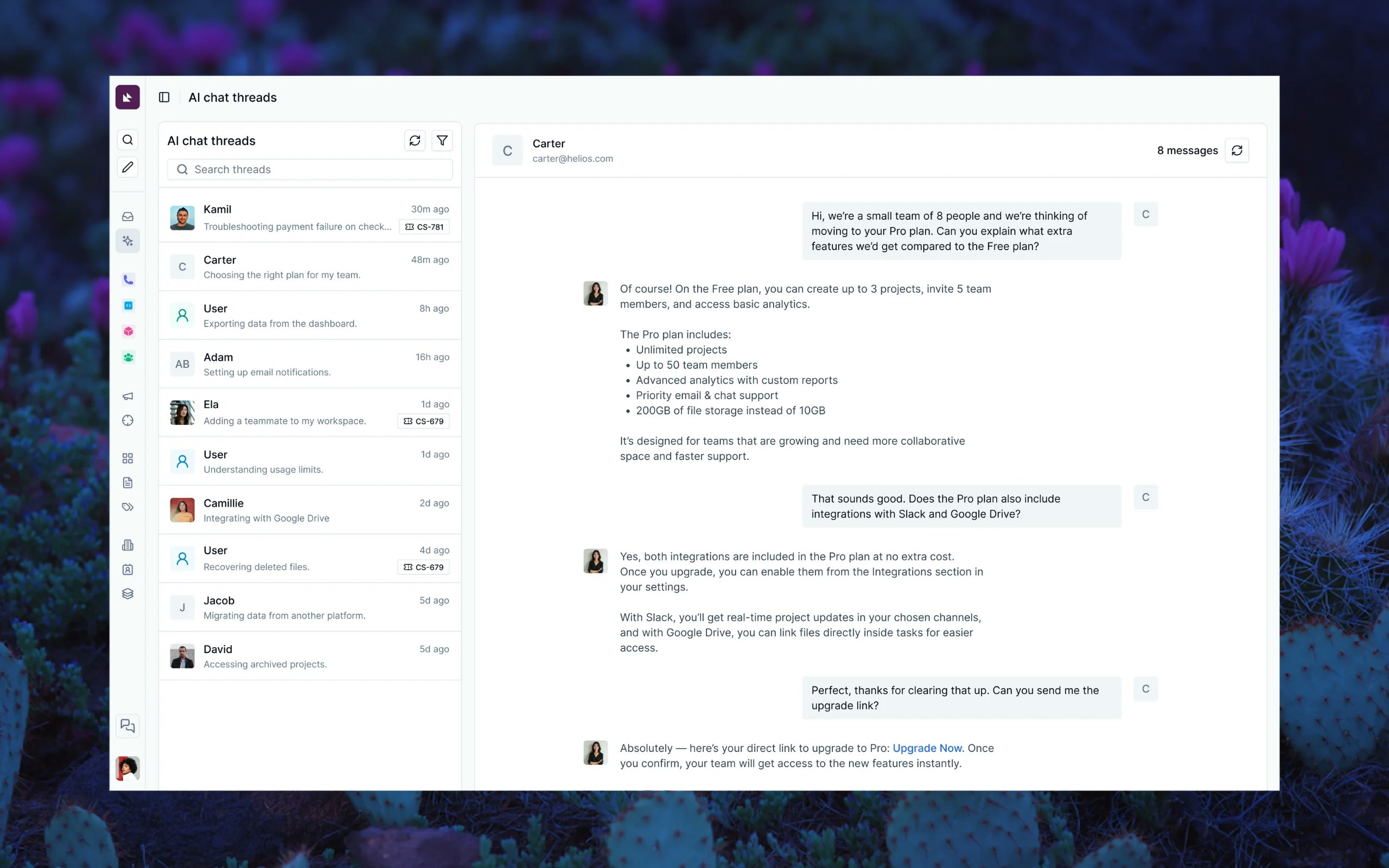 AI chat threads provide a unified view of all AI-powered web-chat conversations happening across your organization. This centralized interface allows you to monitor, analyze, and manage every AI interaction with customers, giving you complete visibility into your automated support operations.
## What are AI chat threads?
AI chat threads are real-time conversations between your AI agents and customers through web chat widgets. Unlike traditional support tickets, these conversations happen in a conversational flow where the AI can provide instant responses, escalate to human agents when needed, and seamlessly convert to tickets for complex issues.
## Key features
### Organization-wide visibility
View all AI chat conversations across every agent and team in your organization from a single interface. No need to switch between different agent dashboards—everything is centralized for easy monitoring.
### Advanced filters and search
Sort conversations by newest or oldest first to prioritize your review.
View conversations with positive, negative, or any team feedback.
Filter by conversations that have been converted to tickets or remain as chat-only.
Search across conversation content, customer names, and thread titles.
Find conversations by customer name or email address for specific user interactions.
Find conversations about specific topics or issues.
### Ticket integration
When AI conversations need human intervention, they can be automatically converted to support tickets. The interface shows:
* **Ticket badges**: Clear indicators when conversations have associated tickets
* **Direct navigation**: One-click access to view the full ticket in the platform
* **Conversion tracking**: Visual banners showing when and how conversations became tickets
### Feedback monitoring
Monitor thumbs-up/down feedback and detailed comments from your team reviewing AI conversations.
Use feedback data to improve AI performance and identify training opportunities for Thena's fine-tuning.
The feedback system helps Thena continuously improve the web chat widget. When your team reviews conversations and provides feedback:
* **Positive feedback** helps identify what's working well and should be maintained
* **Negative feedback** highlights areas where the AI needs improvement
* **Detailed comments** provide specific context for fine-tuning responses
This feedback is sent to us to fine-tune AI response quality, improve conversation flow, enhance user experience, and address common pain points.
### Real-time message viewing
AI chat threads provide a unified view of all AI-powered web-chat conversations happening across your organization. This centralized interface allows you to monitor, analyze, and manage every AI interaction with customers, giving you complete visibility into your automated support operations.
## What are AI chat threads?
AI chat threads are real-time conversations between your AI agents and customers through web chat widgets. Unlike traditional support tickets, these conversations happen in a conversational flow where the AI can provide instant responses, escalate to human agents when needed, and seamlessly convert to tickets for complex issues.
## Key features
### Organization-wide visibility
View all AI chat conversations across every agent and team in your organization from a single interface. No need to switch between different agent dashboards—everything is centralized for easy monitoring.
### Advanced filters and search
Sort conversations by newest or oldest first to prioritize your review.
View conversations with positive, negative, or any team feedback.
Filter by conversations that have been converted to tickets or remain as chat-only.
Search across conversation content, customer names, and thread titles.
Find conversations by customer name or email address for specific user interactions.
Find conversations about specific topics or issues.
### Ticket integration
When AI conversations need human intervention, they can be automatically converted to support tickets. The interface shows:
* **Ticket badges**: Clear indicators when conversations have associated tickets
* **Direct navigation**: One-click access to view the full ticket in the platform
* **Conversion tracking**: Visual banners showing when and how conversations became tickets
### Feedback monitoring
Monitor thumbs-up/down feedback and detailed comments from your team reviewing AI conversations.
Use feedback data to improve AI performance and identify training opportunities for Thena's fine-tuning.
The feedback system helps Thena continuously improve the web chat widget. When your team reviews conversations and provides feedback:
* **Positive feedback** helps identify what's working well and should be maintained
* **Negative feedback** highlights areas where the AI needs improvement
* **Detailed comments** provide specific context for fine-tuning responses
This feedback is sent to us to fine-tune AI response quality, improve conversation flow, enhance user experience, and address common pain points.
### Real-time message viewing
When you select a conversation thread, you can:
- View the complete conversation history in chronological order
- See customer information including name, email, and verification status
- Monitor AI agent responses
- Track message attachments and file uploads
- Provide feedback on AI responses
## Understanding the interface
The left side shows all conversations with key information at a glance:
- Customer avatar and name (or "Anonymous user" for unidentified visitors)
- Conversation title automatically generated from the discussion topic
- Timestamp showing when the conversation was last updated
- Ticket badges for conversations that have been converted to support tickets
- Verification status for customers who have been identified
When you select a thread, the right panel displays:
- Customer header with name, email, and total message count
- Message history with proper formatting for text, code, and links
- Attachment previews for files and images shared during the conversation
- Feedback indicators showing team feedback on AI responses for improvement
## Use cases
Review AI responses to ensure they meet your quality standards and brand voice.
Check AI chat threads daily to stay aware of customer sentiment and common issues.
Use team feedback to identify areas where your AI agents need improvement or additional training for Thena's fine-tuning.
Use conversation patterns to identify knowledge gaps and improve AI training.
Track AI effectiveness through resolution rates and team feedback scores for continuous improvement.
Monitor which conversations convert to tickets to understand when AI reaches its limits.